Managing your dashboard
The Dashboard provides a comprehensive overview of your business performance and order flow at a glance. This guide will walk you through navigating your analytics, filtering order data, and creating manual orders directly from your dashboard.
Log into the Menu Manager
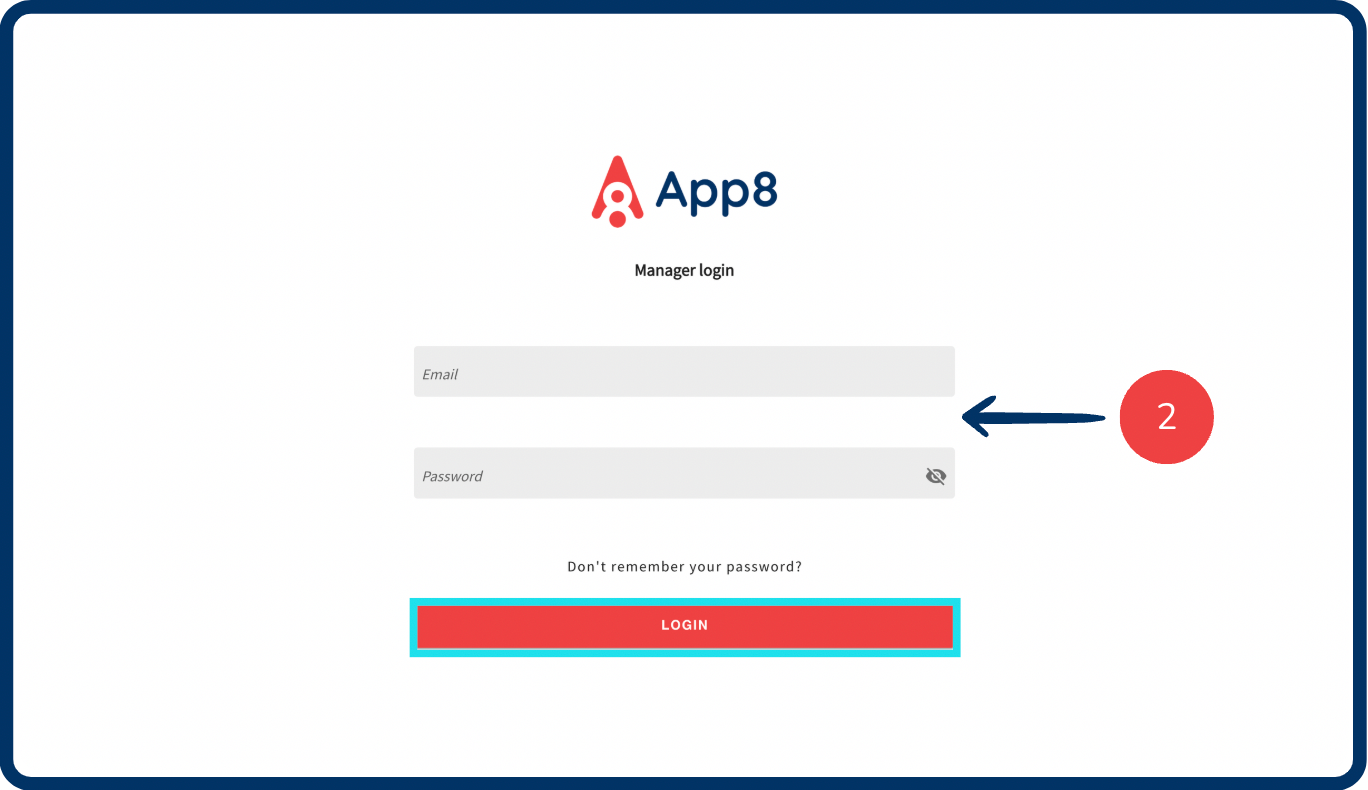
Go to the Menu Manager.
Enter your credentials and login.
Navigate to the Dashboard
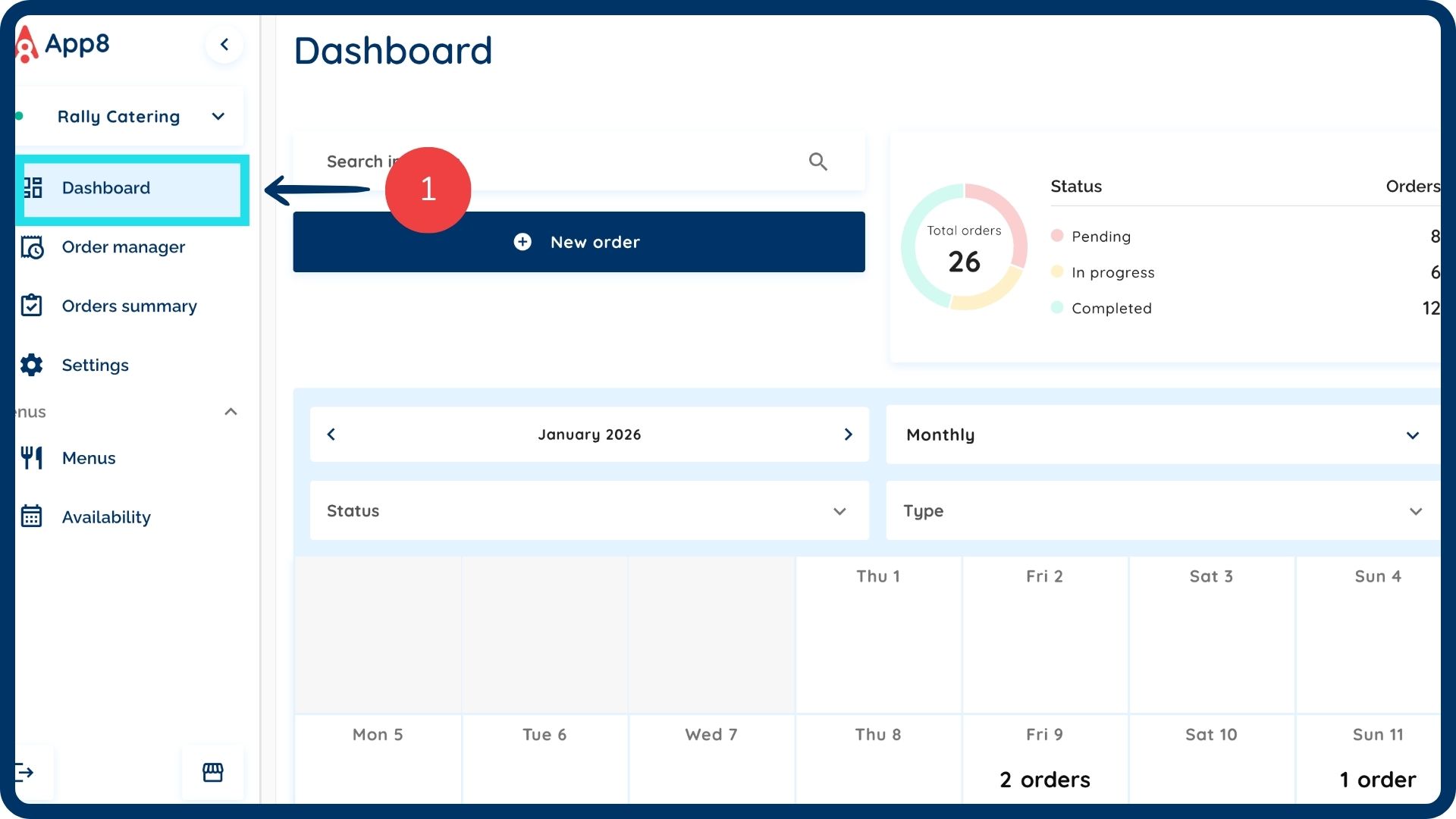
Select “Dashboard” from the left sidebar.
Filter & view order data
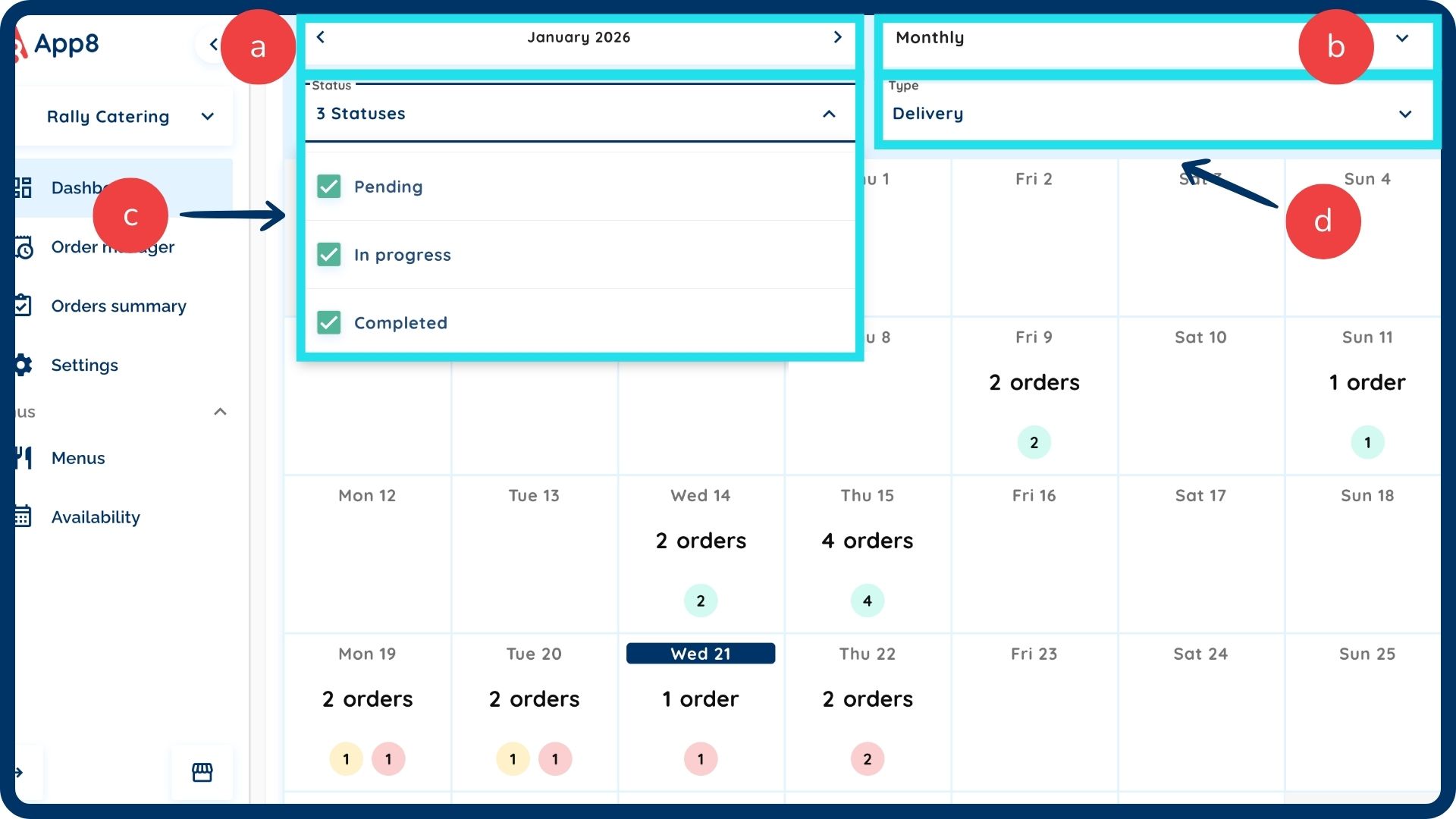
Use the built-in filters to customize the data displayed on your dashboard.
- Use the calendar function: Select specific dates to view your order history and upcoming volume.
- Get the breakdown you wish to see: Use the scroll down menu to toggle between Monthly, Weekly, or Daily views.
- See order breakdown based on status: Select within the “Status” options from the scroll down menu based on whether they are Pending, In Progress, or Completed.
- See order breakdown based on type of order: Select within the “Type” option from the scroll down menu to view performance for Pickup or Delivery.
View orders breakdown by status
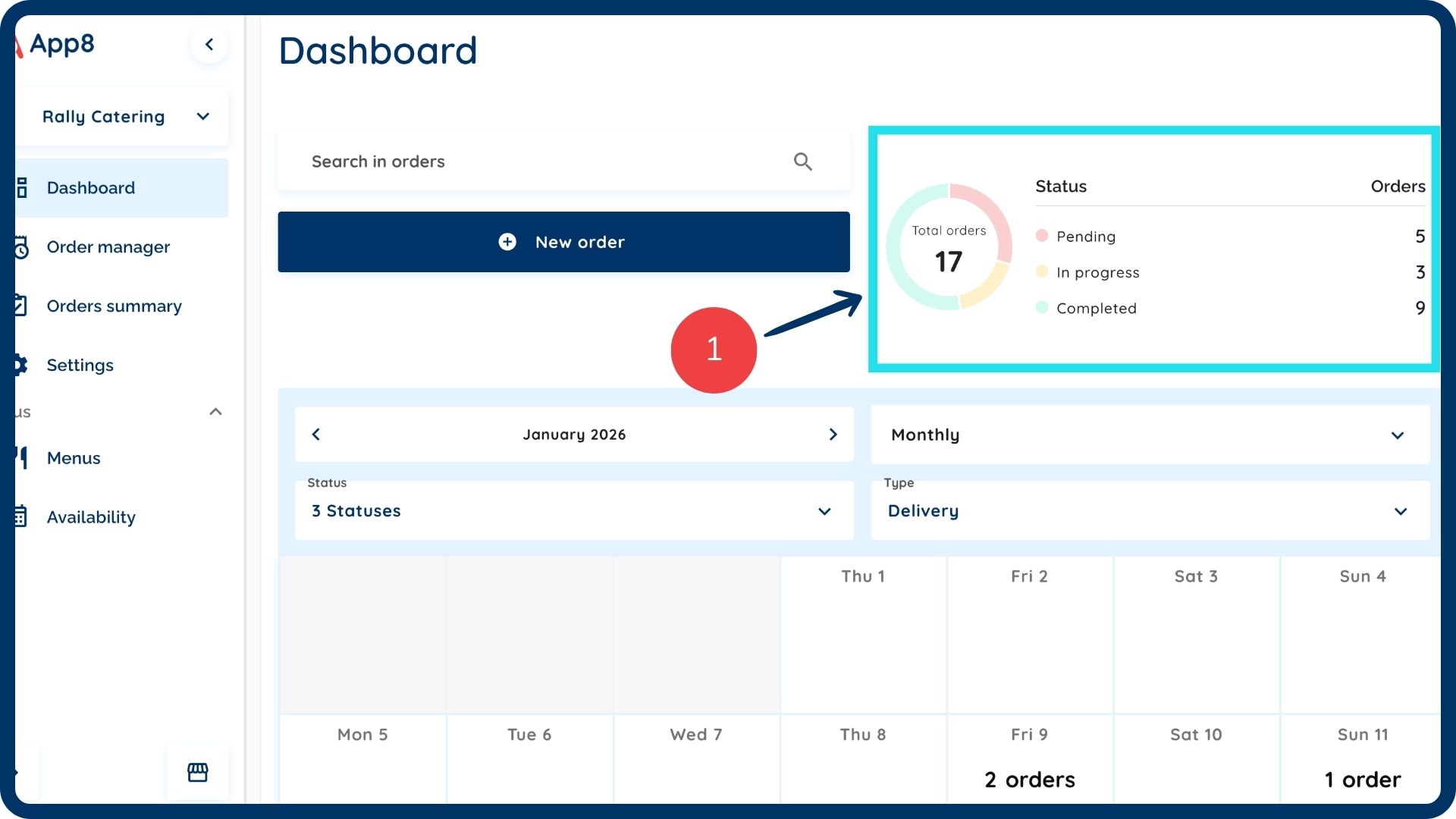
- View the graph on the top right-hand side for a visual status breakdown.
View upcoming orders
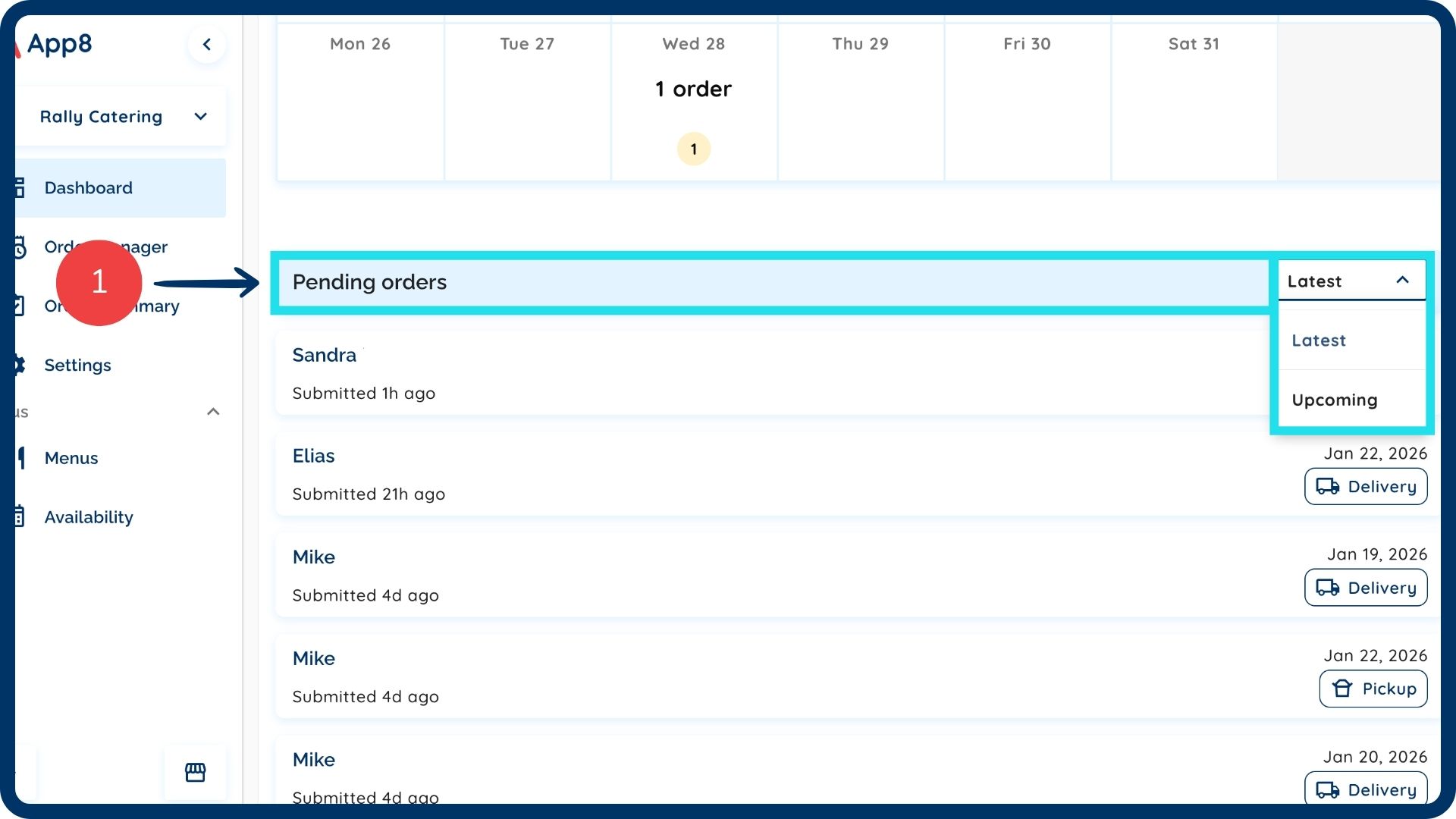
- View latest and upcoming orders by scrolling to the bottom of the page to see orders based on the option you select.
Create a new order
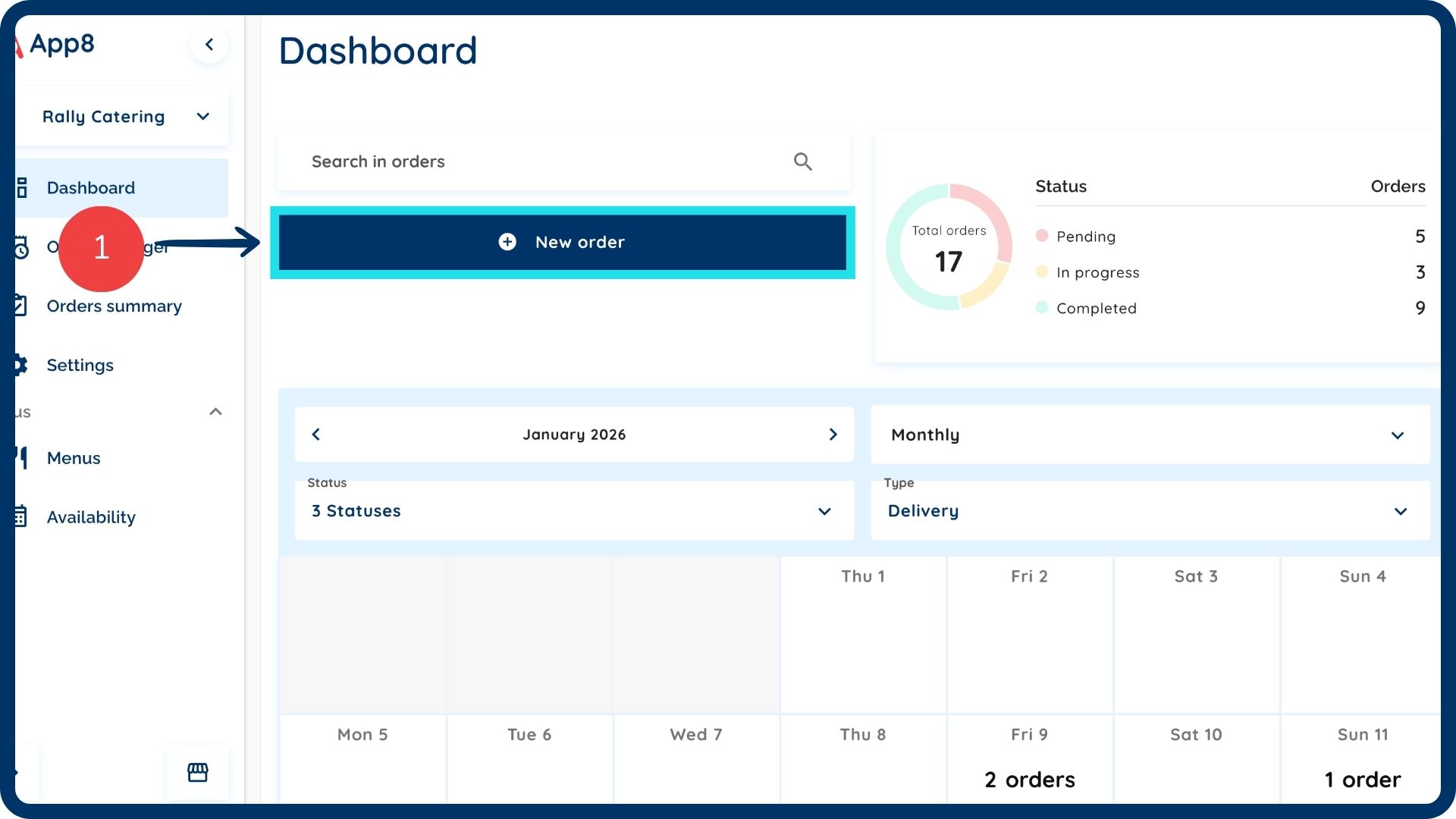
- Click the “New order” button.
- Select the delivery type and click the “Continue” button.
- Select all the items you want for the order and then click the “Continue” button.
Complete a new order
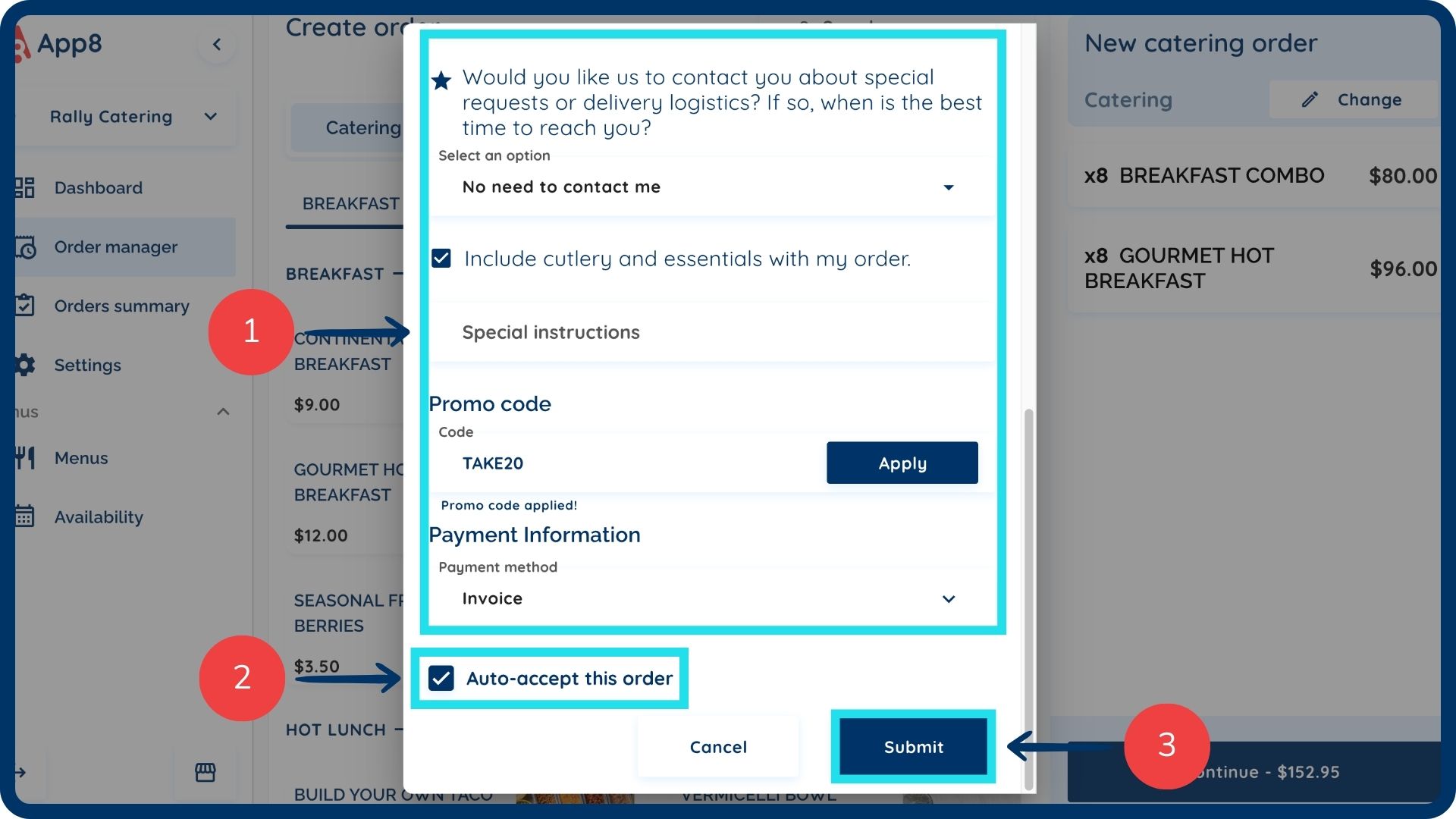
- Input all the guest details, special requests, promo codes (if applicable) and payment information.
- Check off “Auto-accept this order” to automatically move the order to in progress.
- Click the “Submit” button to finalize the order.
Was this article helpful?
That’s Great!
Thank you for your feedback
Sorry! We couldn't be helpful
Thank you for your feedback
Feedback sent
We appreciate your effort and will try to fix the article