Managing your orders
Providing a seamless ordering experience is essential for customer satisfaction and repeat business. This guide will walk you through how guests navigate the menu, place an order, and manage their order history from their account.
Access the menu and sign in
Open the menu.
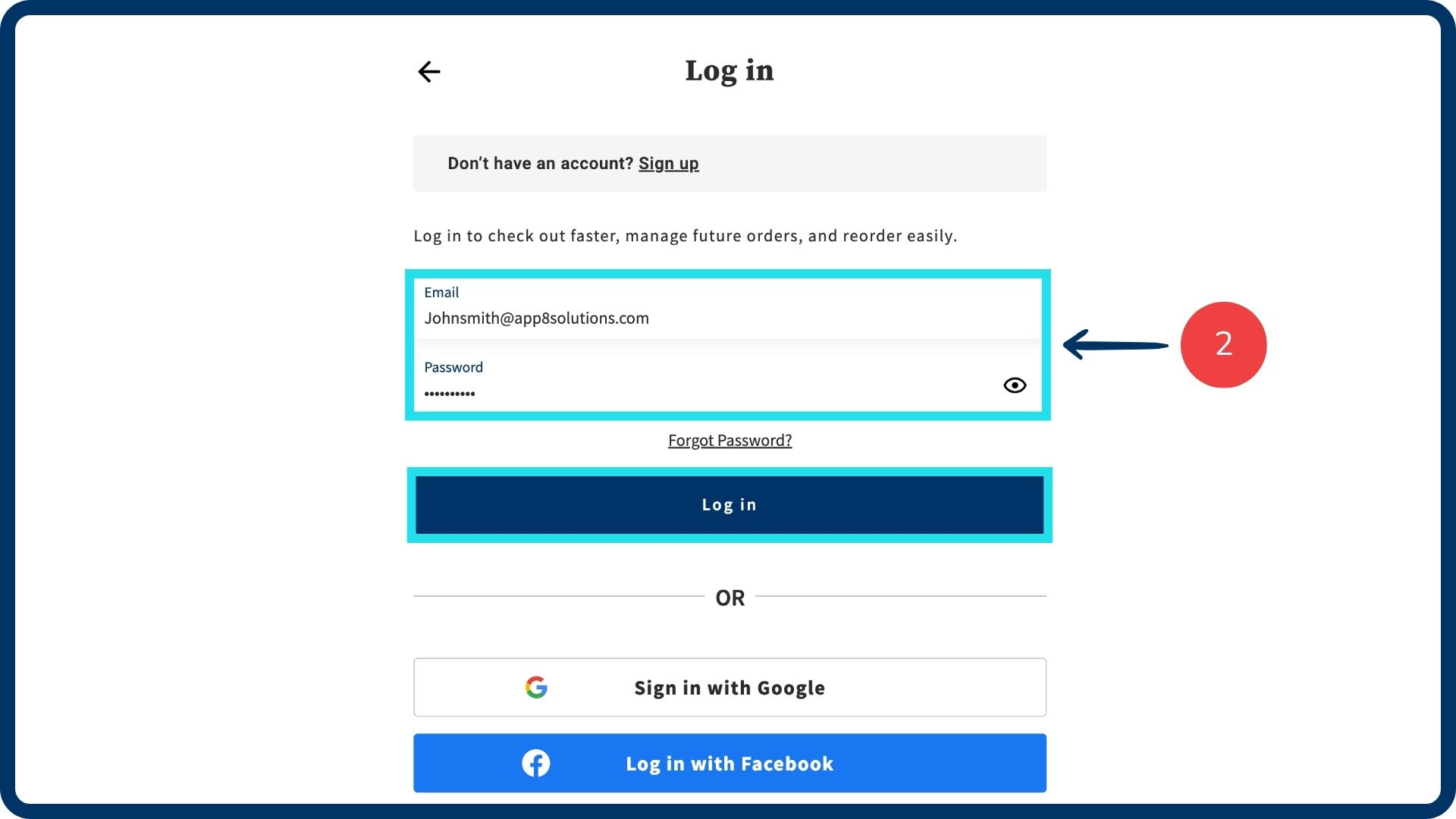
Sign up or log into your account. If you do not have an account, you will have the opportunity to create one during the checkout process. An account is only mandatory when paying with a credit card.
Build your order
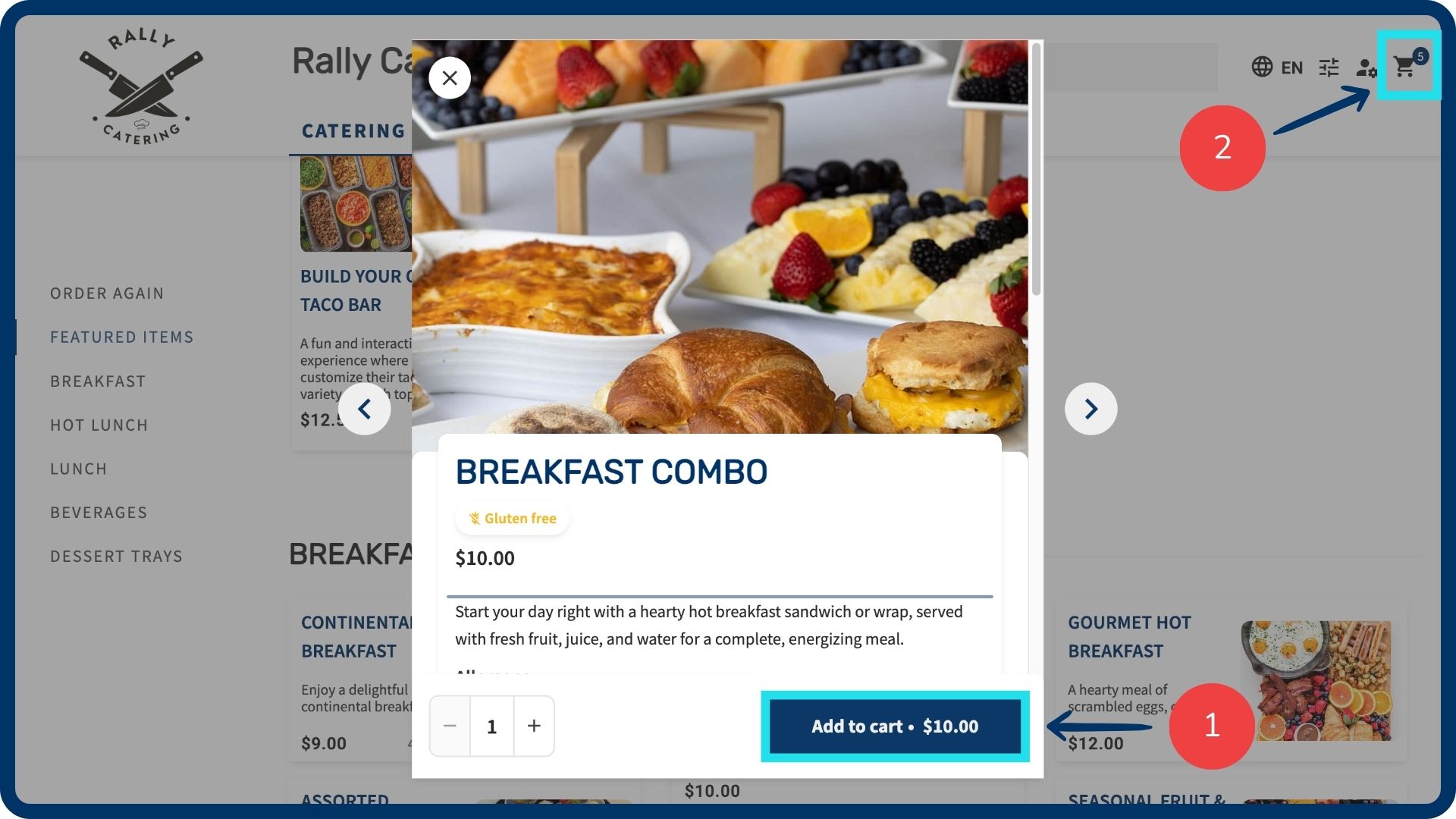
Select the items you want to add to your order.
Click the cart icon to access your basket to ensure all selections and quantities are correct.
Review your order
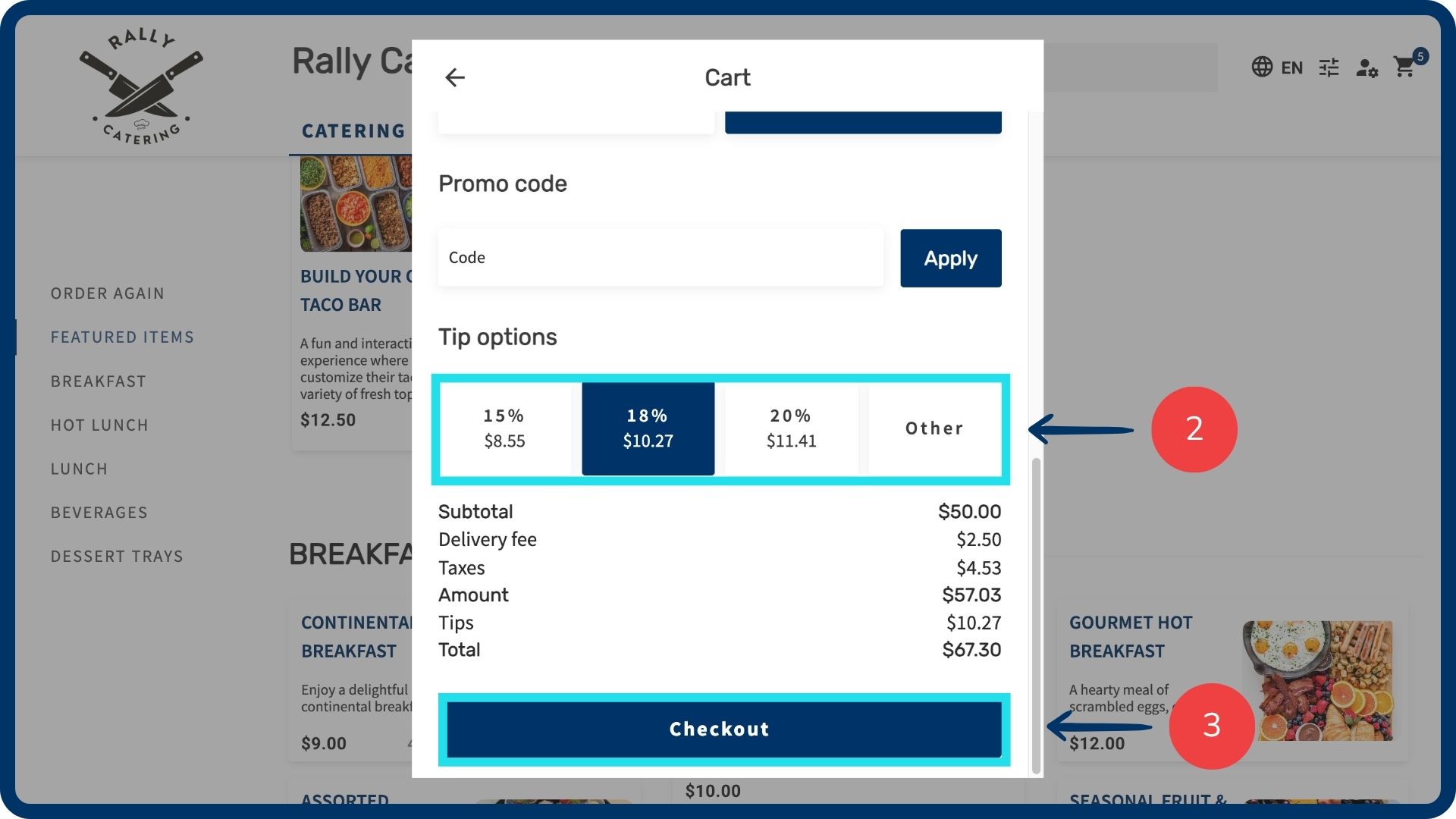
- Review your order information and total.
Input your tip option.
Click the "Checkout" button to proceed forward.
Place your order
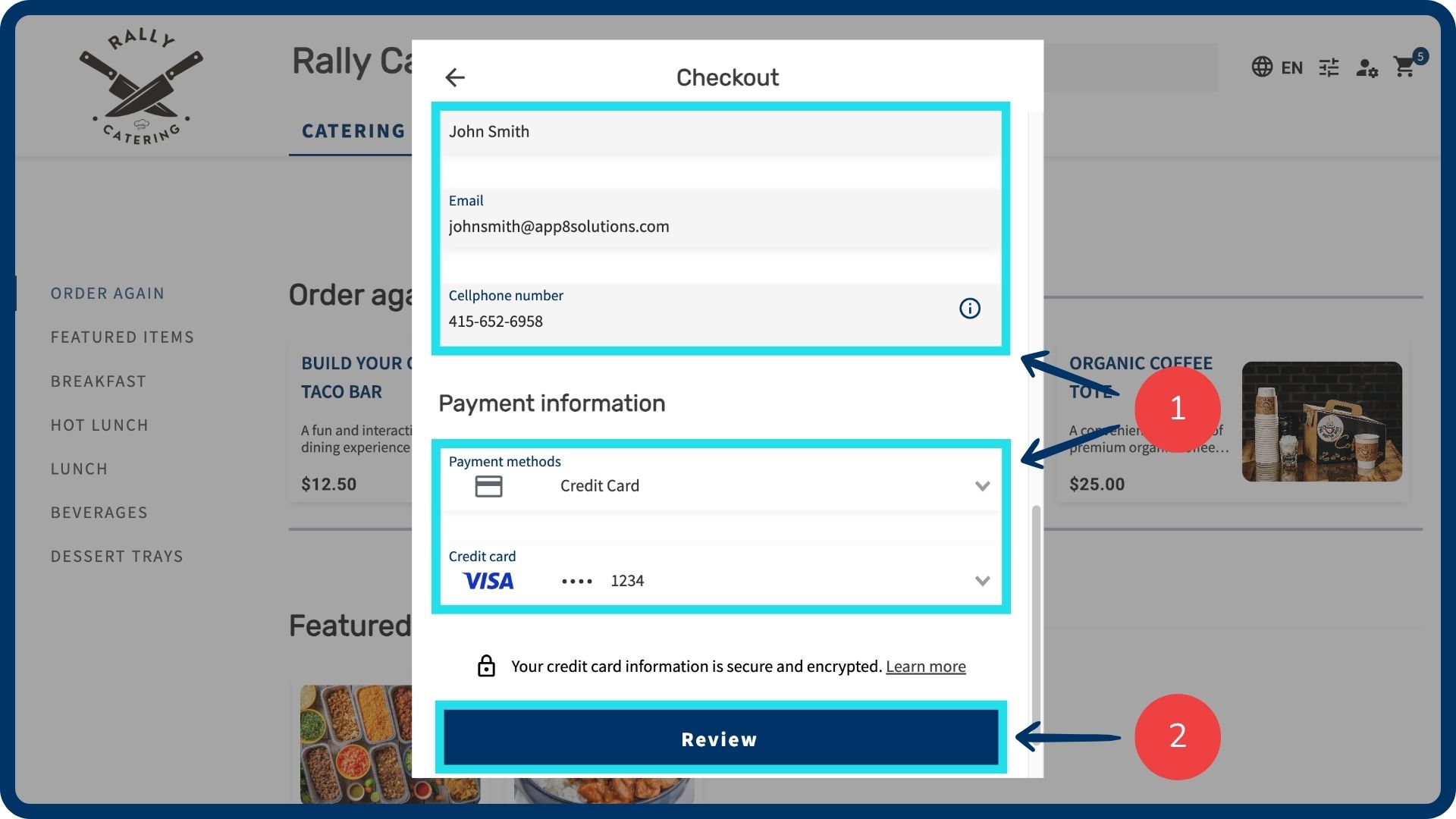
Input your guest details, special requests, and payment information.
- Click the "Review" button for a final overview before finalizing your transaction.
- Click the "Submit" button to finalize your transaction.
Additional account features
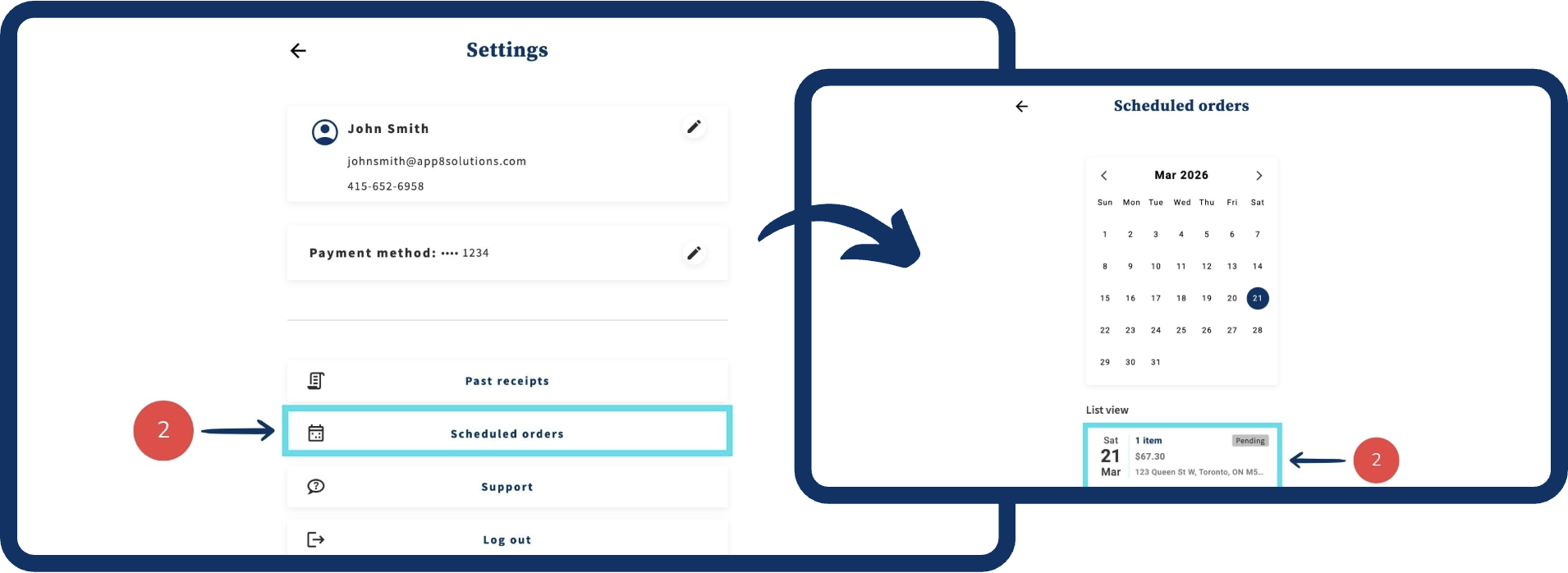
View upcoming orders
Navigate to your Account settings.
Select the "Scheduled orders" page to view all upcoming orders.
View past orders
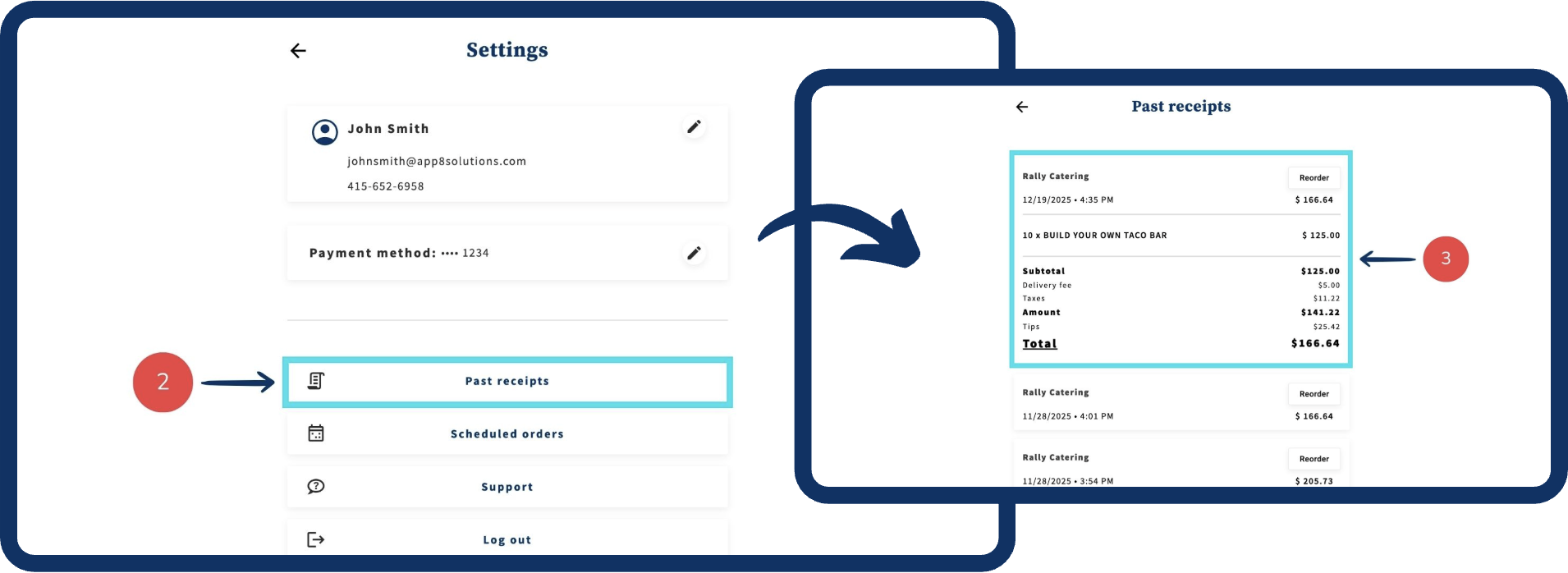
Navigate to your Account settings.
Click the "Past receipts" button to view your full order history.
Click on any specific order within the Past receipts page to view the individual order details and breakdown.
Reorder items
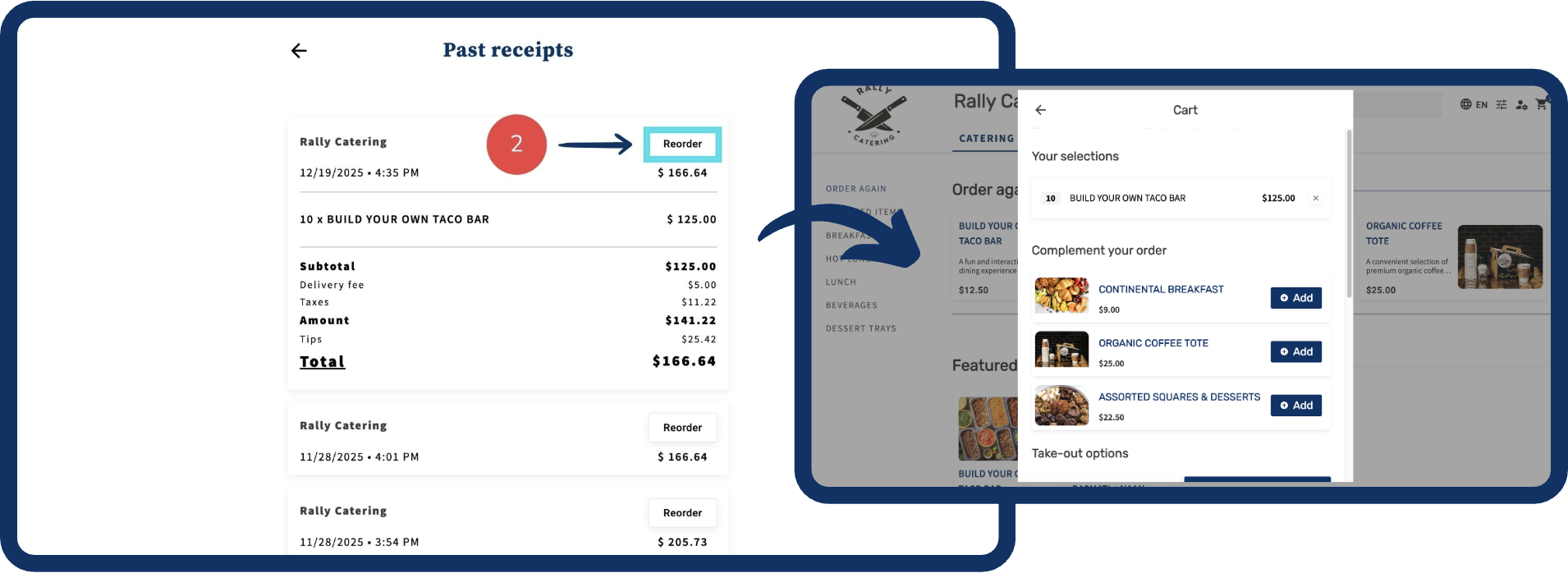
Find a previous order you wish to repeat in the Past receipts section.
Click the "Reorder" button. The system will automatically add all the same items to your cart and direct you directly to the checkout page for a faster experience.
Was this article helpful?
That’s Great!
Thank you for your feedback
Sorry! We couldn't be helpful
Thank you for your feedback
Feedback sent
We appreciate your effort and will try to fix the article