Operator ordering
Manual order creation allows you to process requests received over the phone or in person directly through your system. This guide will walk you through how to build a cart, add custom "open" items, and finalize the guest checkout process.
Log into the Menu Manager
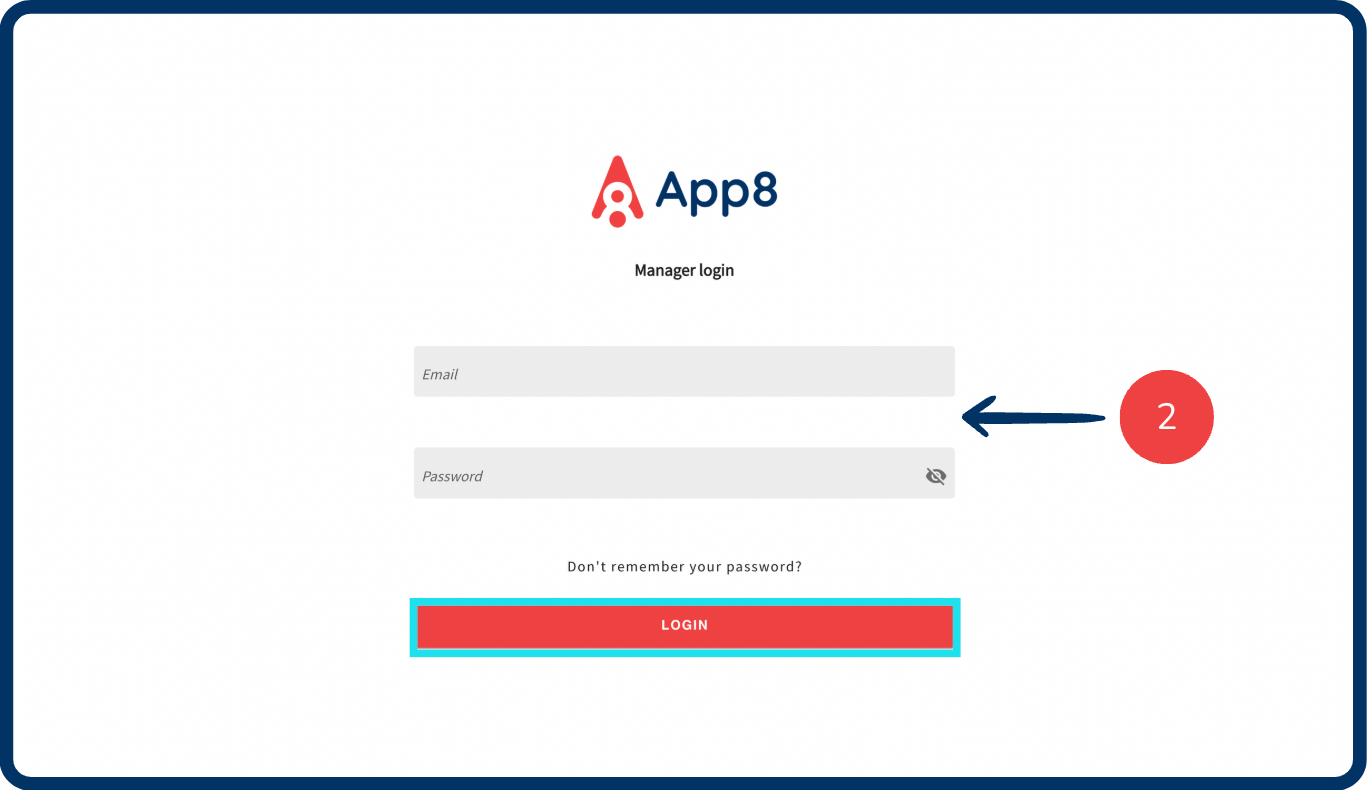
Go to the Menu Manager.
Enter your credentials and login.
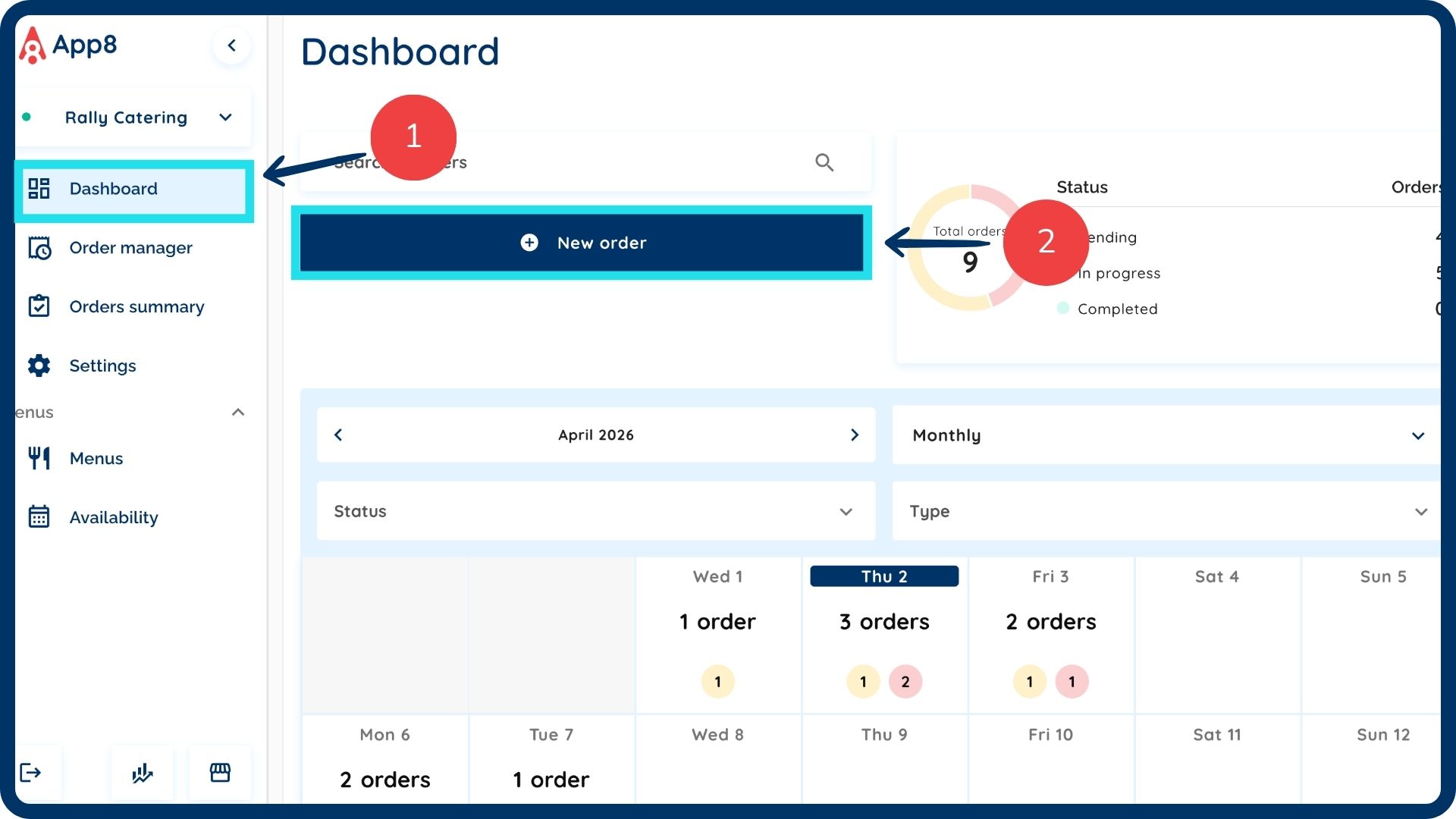
Navigate to the manual order tool
- Select “Dashboard” or “Order manager” from the left sidebar.
- Click the “New order” button.
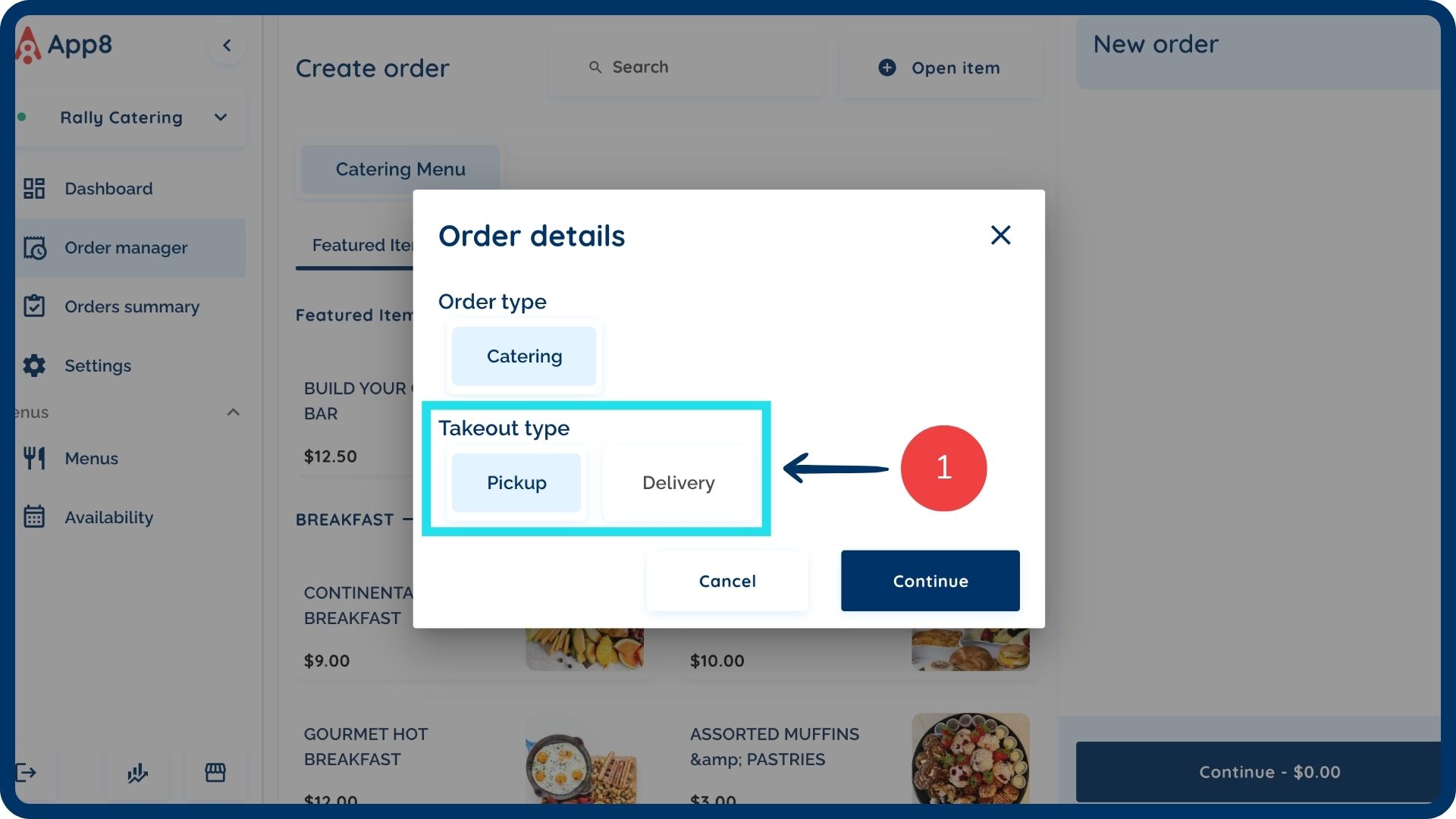
Configure order details
Select the required "Takeout type" for this order.
Add items to the order
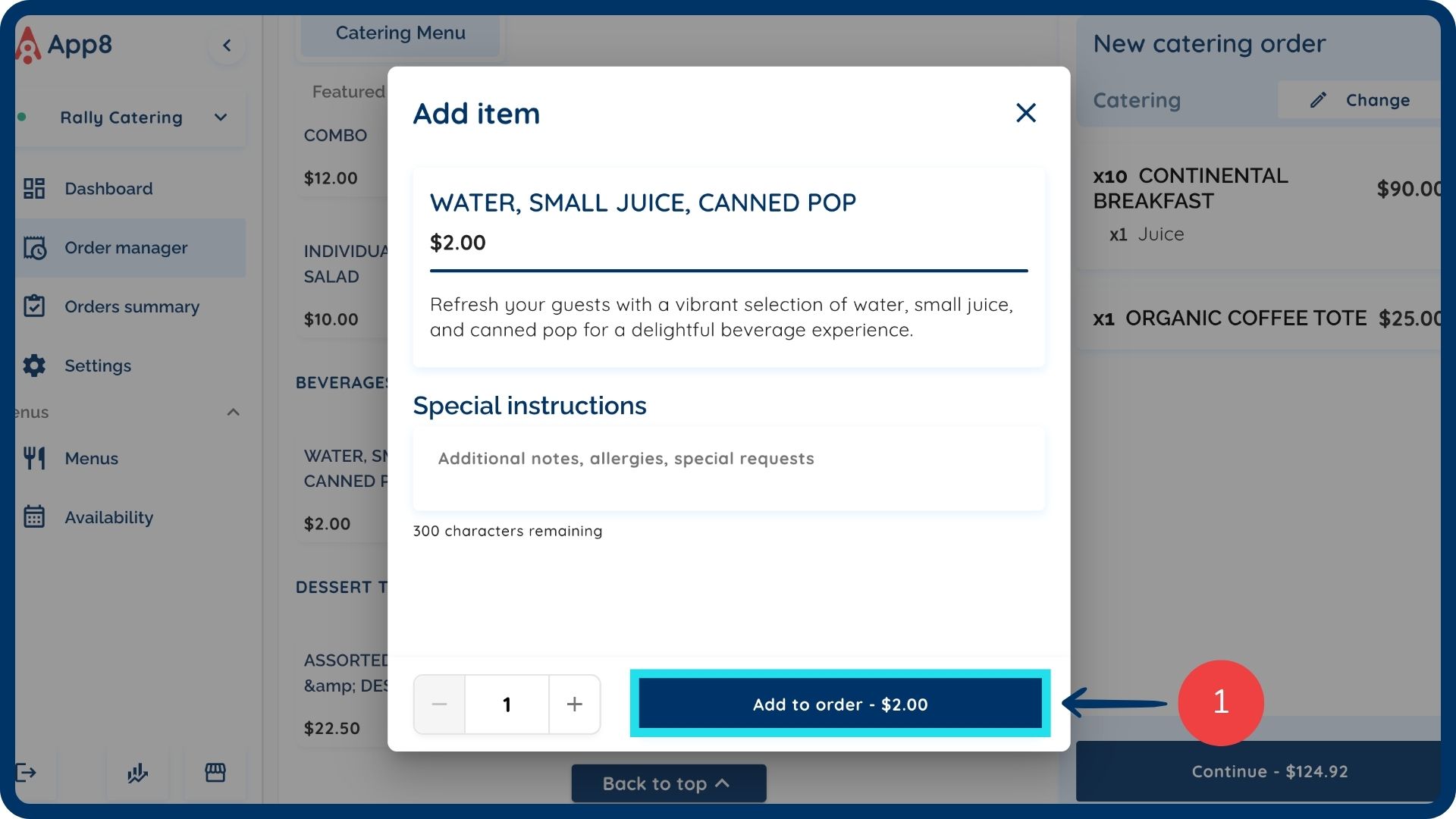
Add all the necessary items to the cart from your existing menu.
Add a custom open item
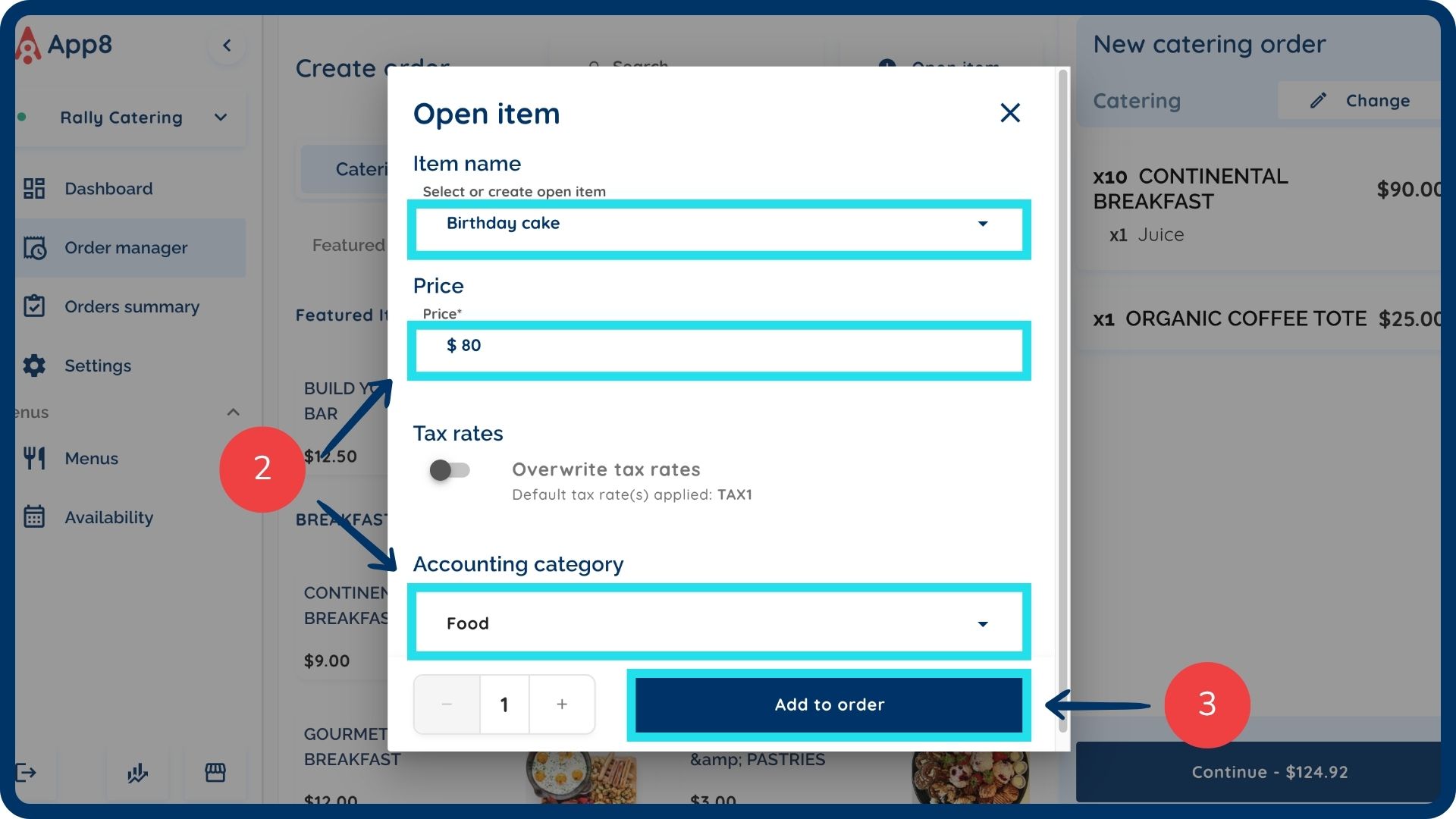
Click the “Open item” button at the top right of the menu. This feature allows you to add an item that is not on your menu but can be provided for the customer.
Input the item name, price, and accounting category.
Click the “Add to order” button to include it in the current request.
Input guest details
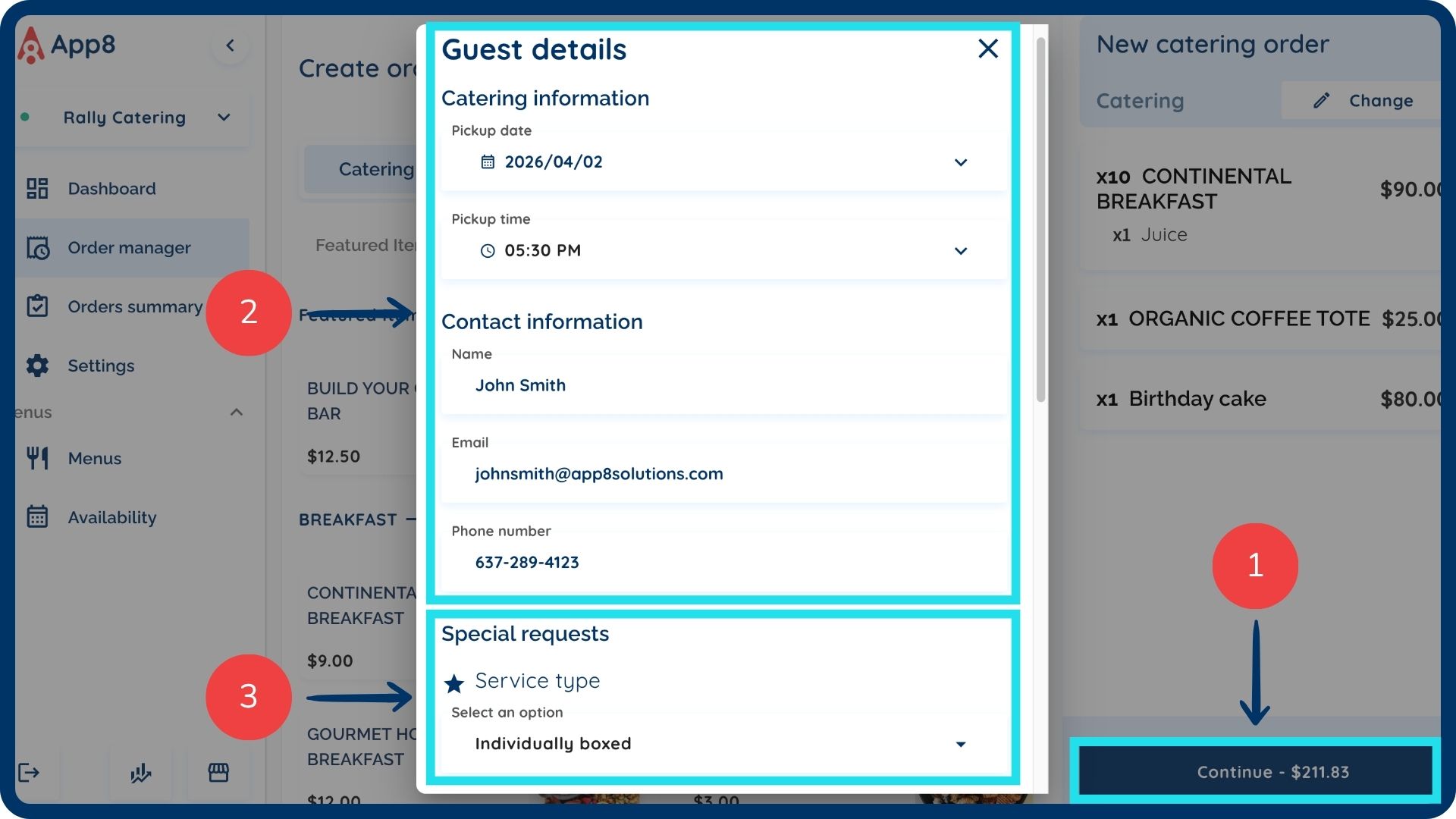
Click the “Continue” button once all items have been added to the order.
Enter the guest details for the order.
Complete any required custom questions or special requests associated with the order.
Apply discount and payment
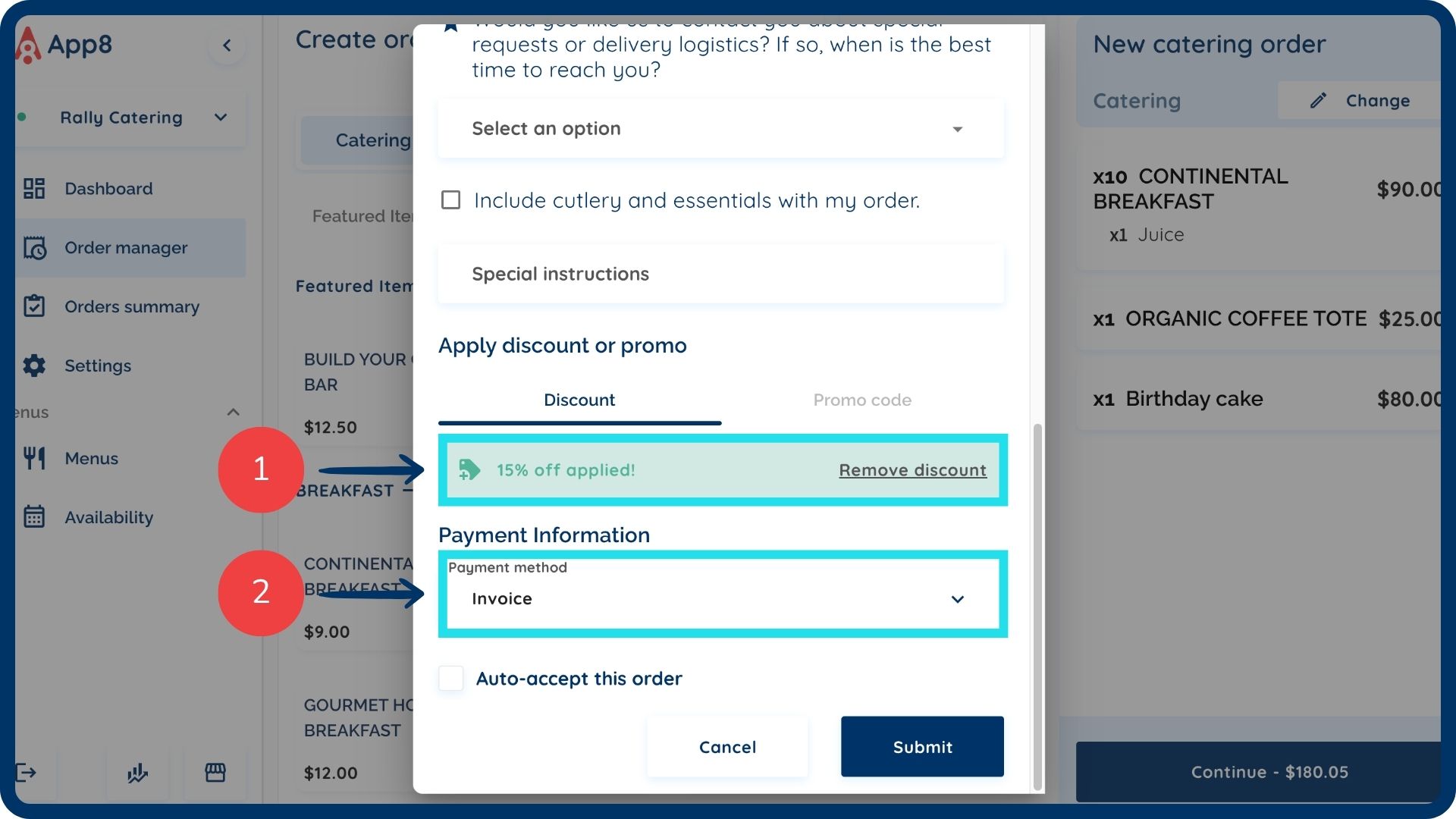
Apply a discount if applicable to the order total.
Select the desired payment type (e.g., Credit card, Invoice, Cost center).
Finalize order
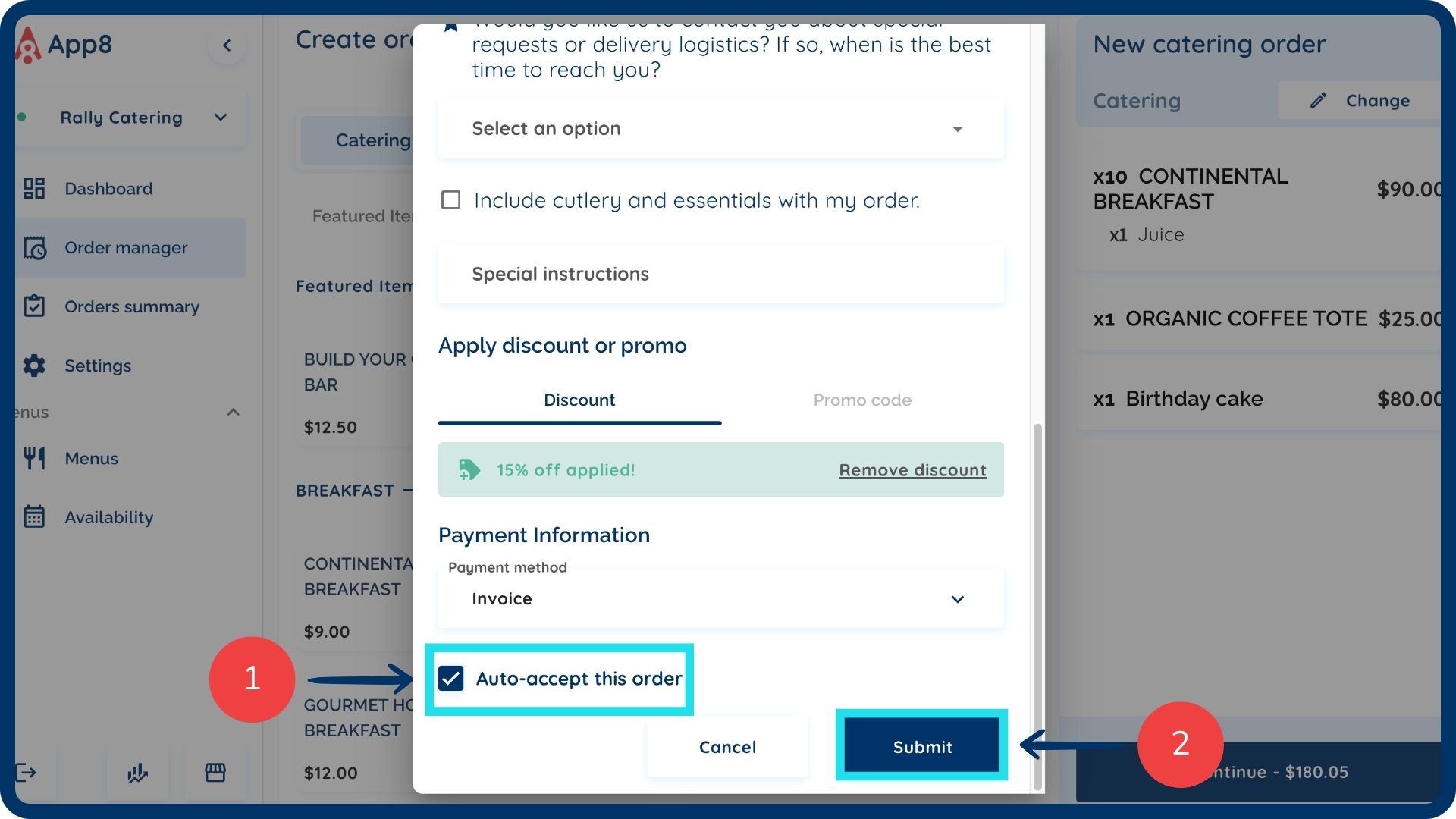
Check the “Auto-accept this feature” box to automatically move the order to the “In progress” column within the Order Manager.
Click the “Submit” button to complete the order. The guest will receive an order confirmation email.
Was this article helpful?
That’s Great!
Thank you for your feedback
Sorry! We couldn't be helpful
Thank you for your feedback
Feedback sent
We appreciate your effort and will try to fix the article