Managing calendar integrations
Integrating your order flow with your preferred calendar ensures you never miss an upcoming delivery or pickup. This guide will walk you through syncing your orders with Google, Apple, or Outlook using direct buttons or a manual URL subscription.
Log into the Menu Manager
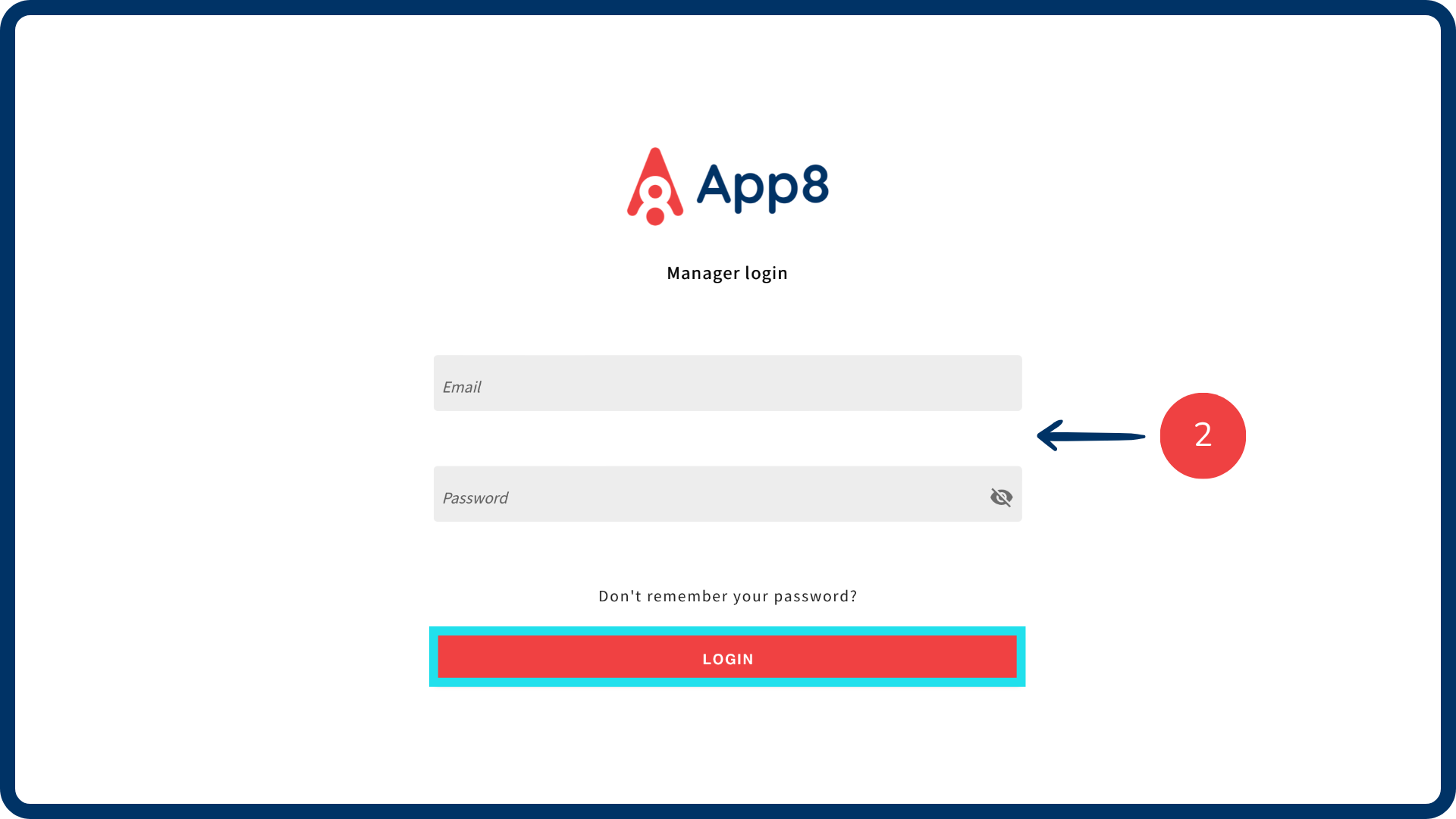
Go to the Menu Manager.
Enter your credentials and login.
Access integrations
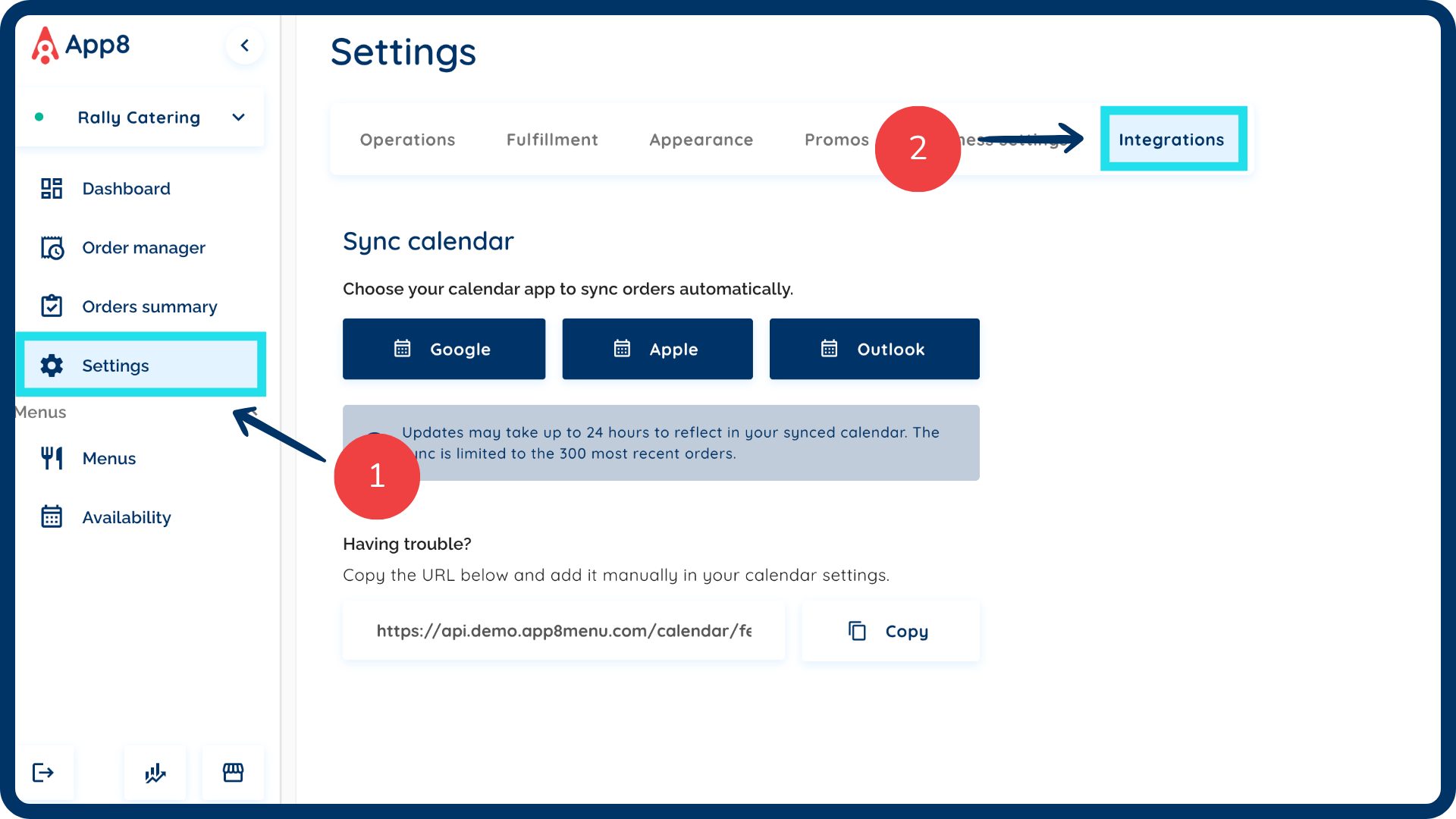
Select "Settings" from the left sidebar.
Select the “Integrations” tab from the top menu bar.
Sync your calendar
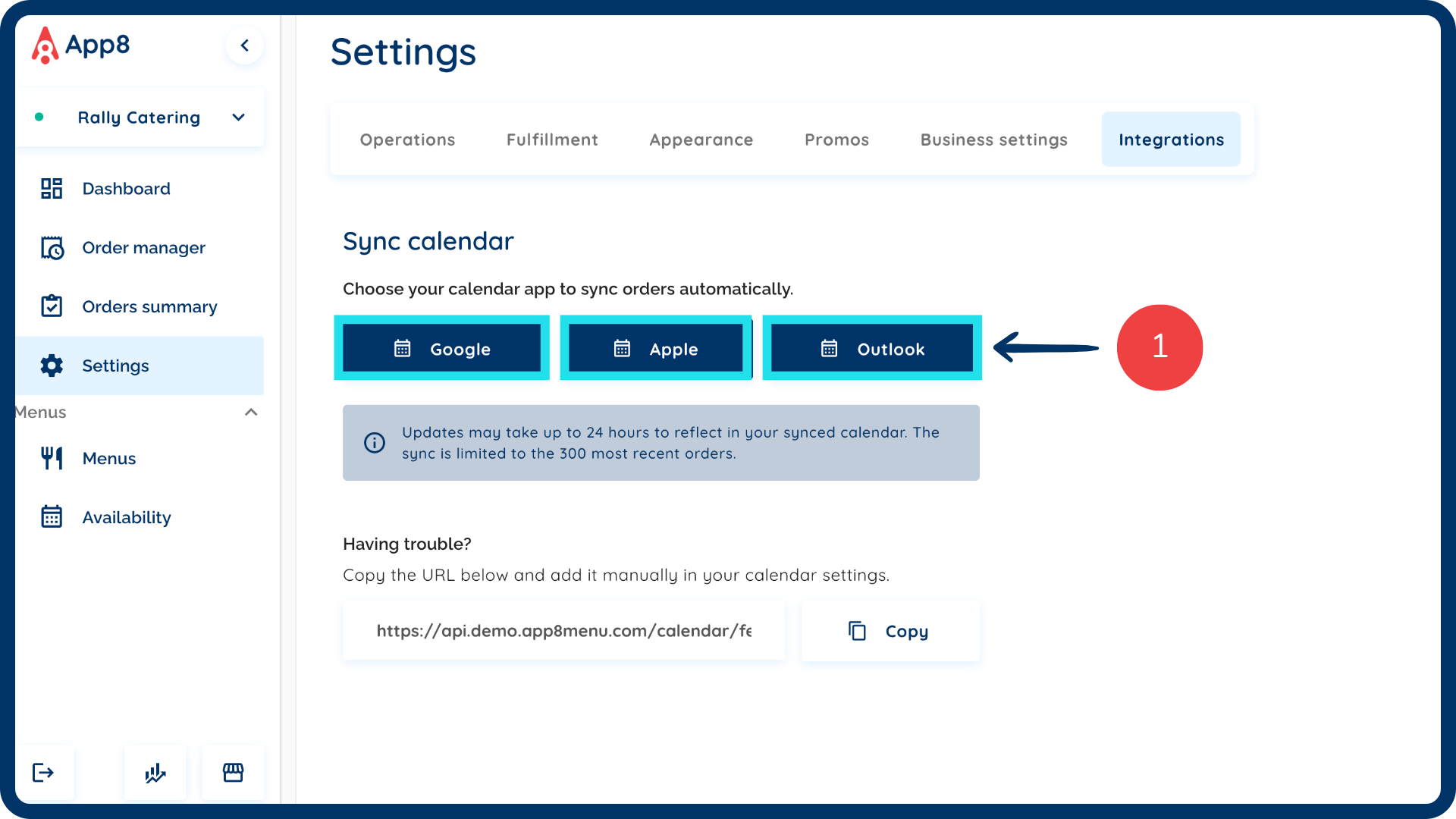
Click the button associated with the calendar integration you want (Google, Apple, or Outlook).
Note: It can take up to 24 hours for the integration to sync and show up on your personal calendar.
Subscribe via URL
Copy the URL provided in the integration section.
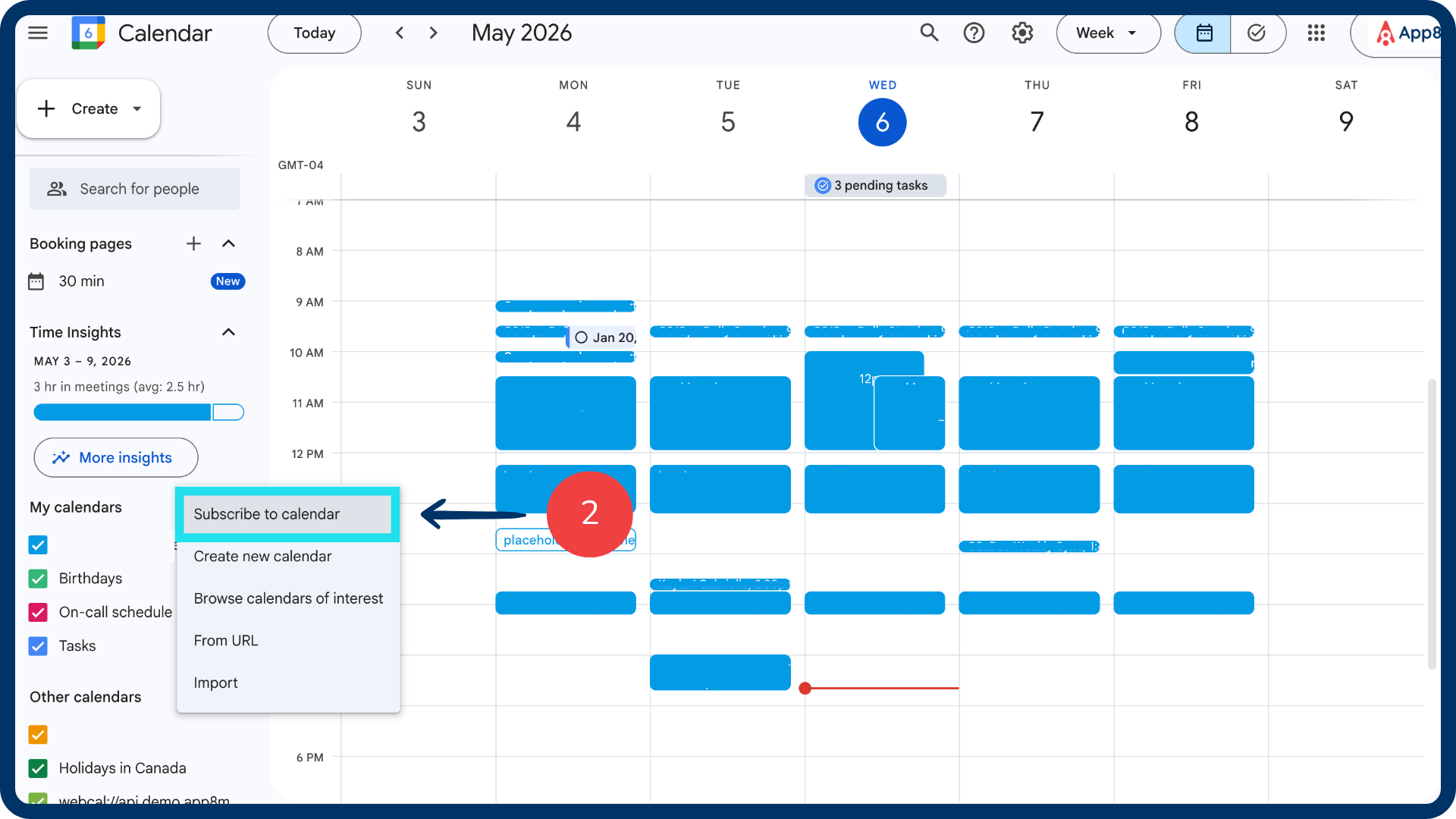
Open your calendar application and click “Subscribe to calendar”.
Select the “From URL” option.
Input the URL that you saved previously and click “add calendar”.
View your orders
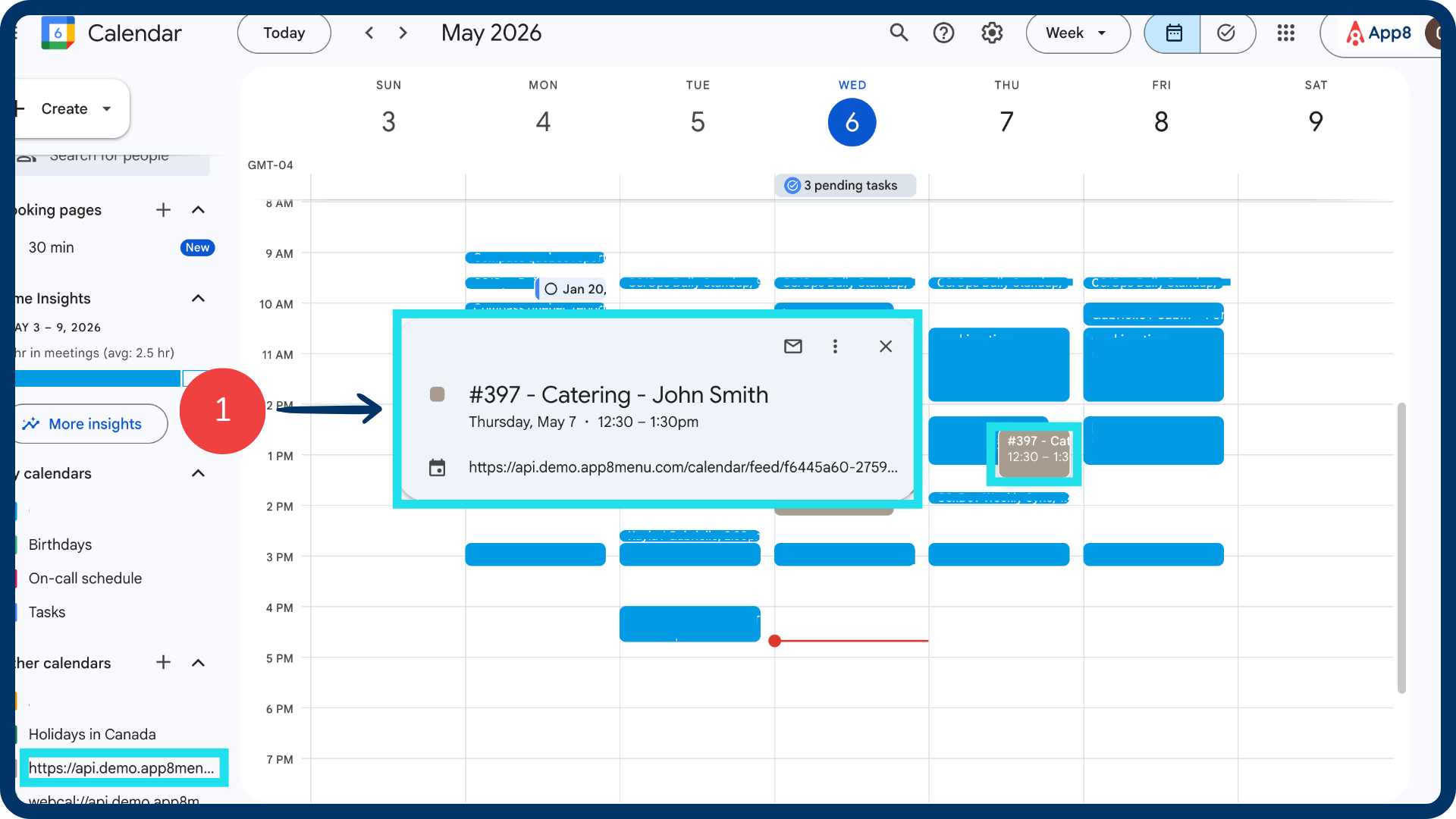
- Open your calendar, once the sync is complete, your orders will appear as calendar events.
Note: The next 300 orders you have scheduled will automatically show up on your calendar.
Was this article helpful?
That’s Great!
Thank you for your feedback
Sorry! We couldn't be helpful
Thank you for your feedback
Feedback sent
We appreciate your effort and will try to fix the article