Creating and managing tags
Tags are a powerful visual tool used to highlight specific dietary preferences, allergens, or featured items on your menu. This guide will walk you through how to create custom tags, customize their appearance, and associate them with your menu items.
Log into the Menu Manager
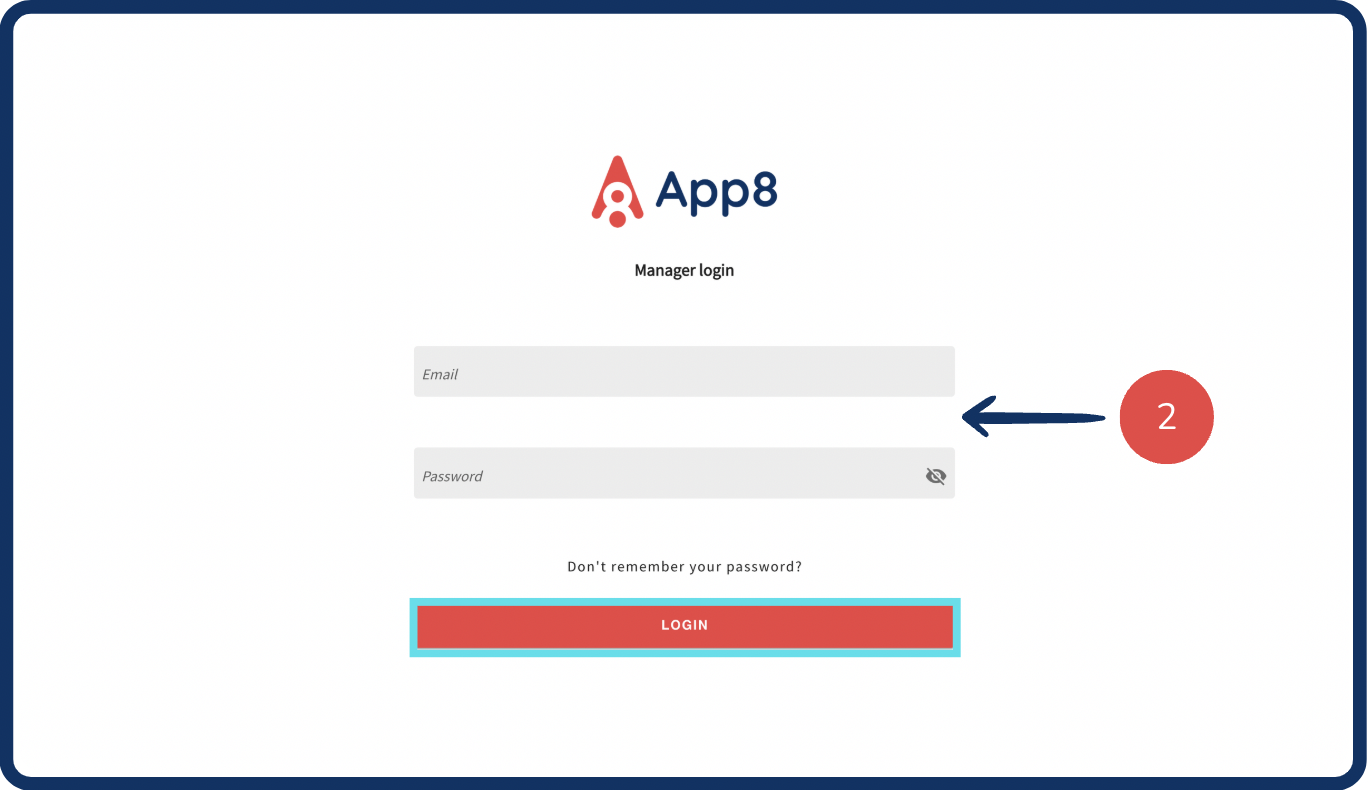
Go to the Menu Manager.
Enter your credentials and login.
Access the tags section
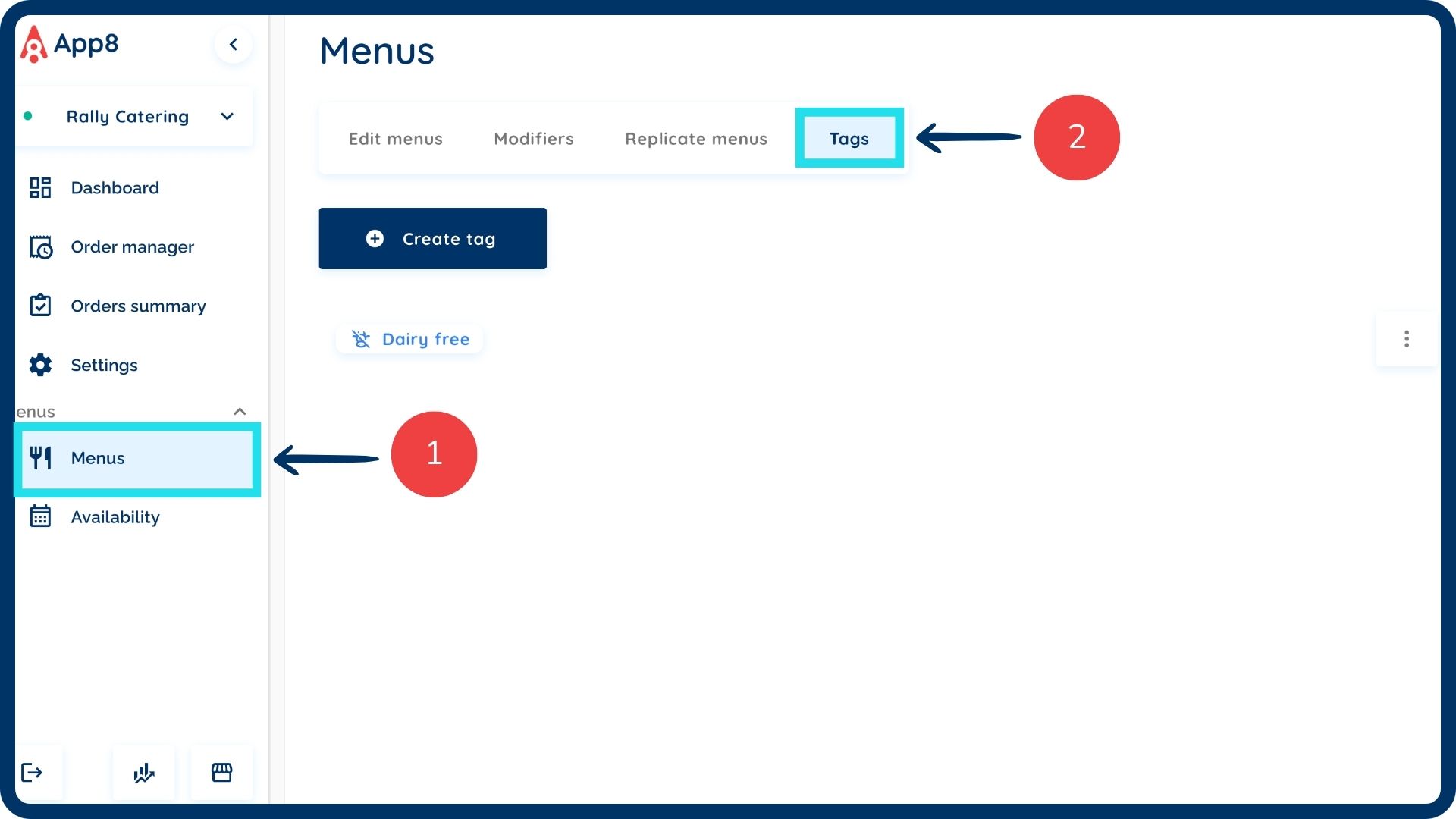
Select "Menus" from the left sidebar.
Select the "Tags" tab from the top menu bar.
Create a new tag
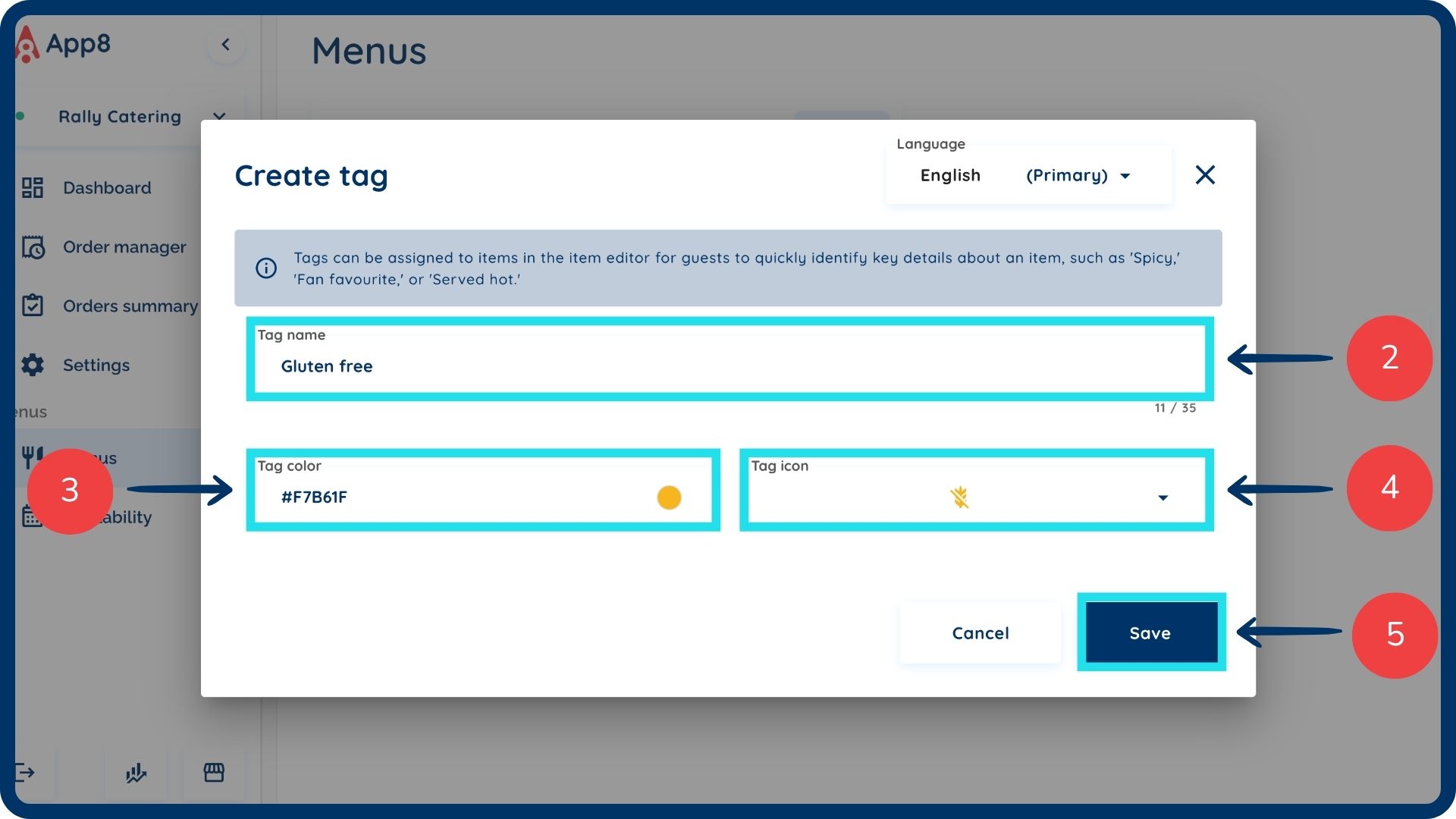
Click the “Create tag” button.
Input the tag name (e.g., Gluten-free, Spicy, or Vegan).
Select the tag color to define how the tag appears on the menu.
Select a tag icon from the library to provide a visual cue for guests.
Click the "Save" button to finalize the tag.
Edit or remove a tag
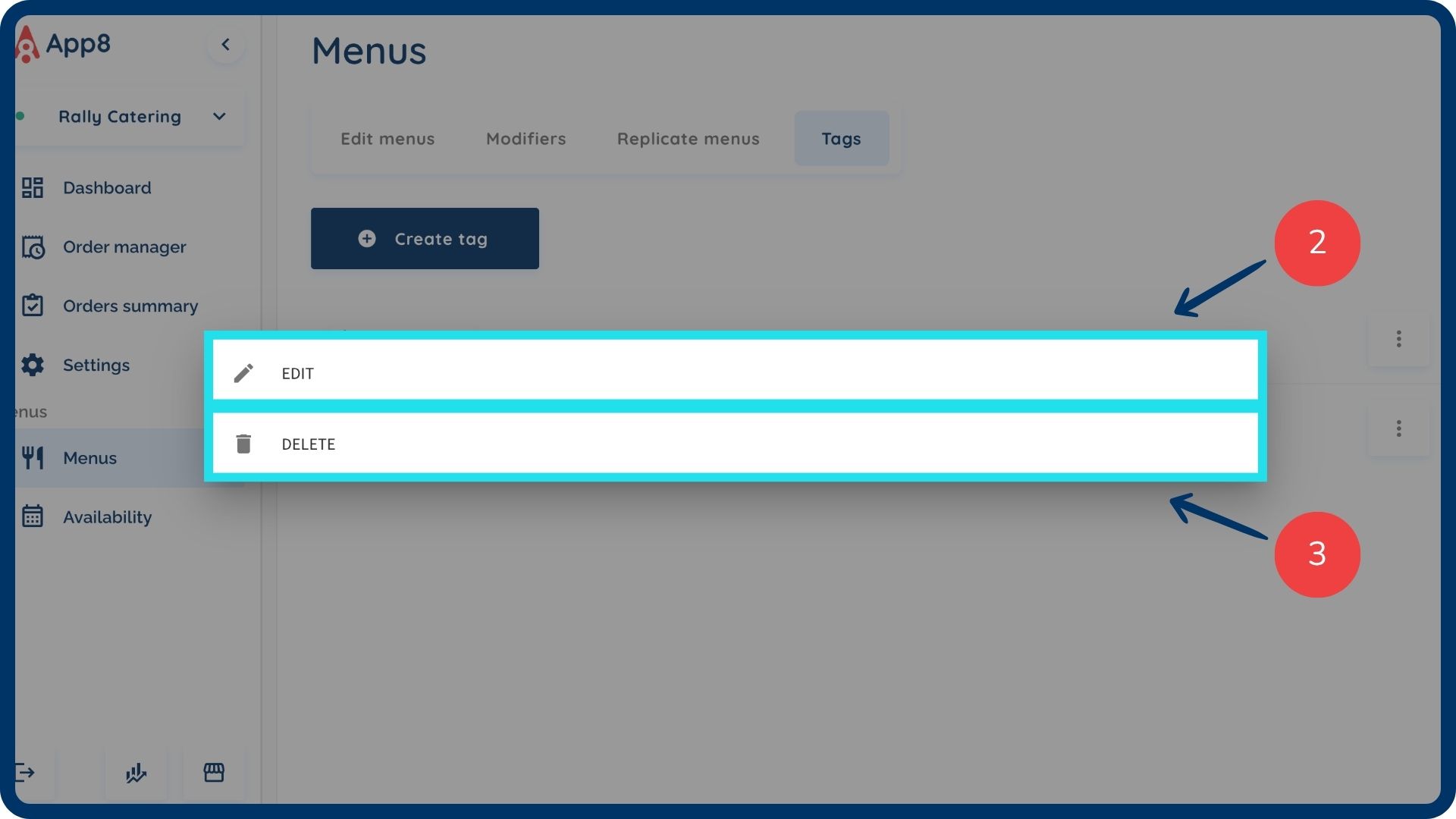
Click on the three grey dots located on the right side of the tag row.
Select the "Edit" button to update the name, color, or icon.
Select the "Delete" button to permanently remove the tag from your library.
Associate tags to items
Navigate to your items list.
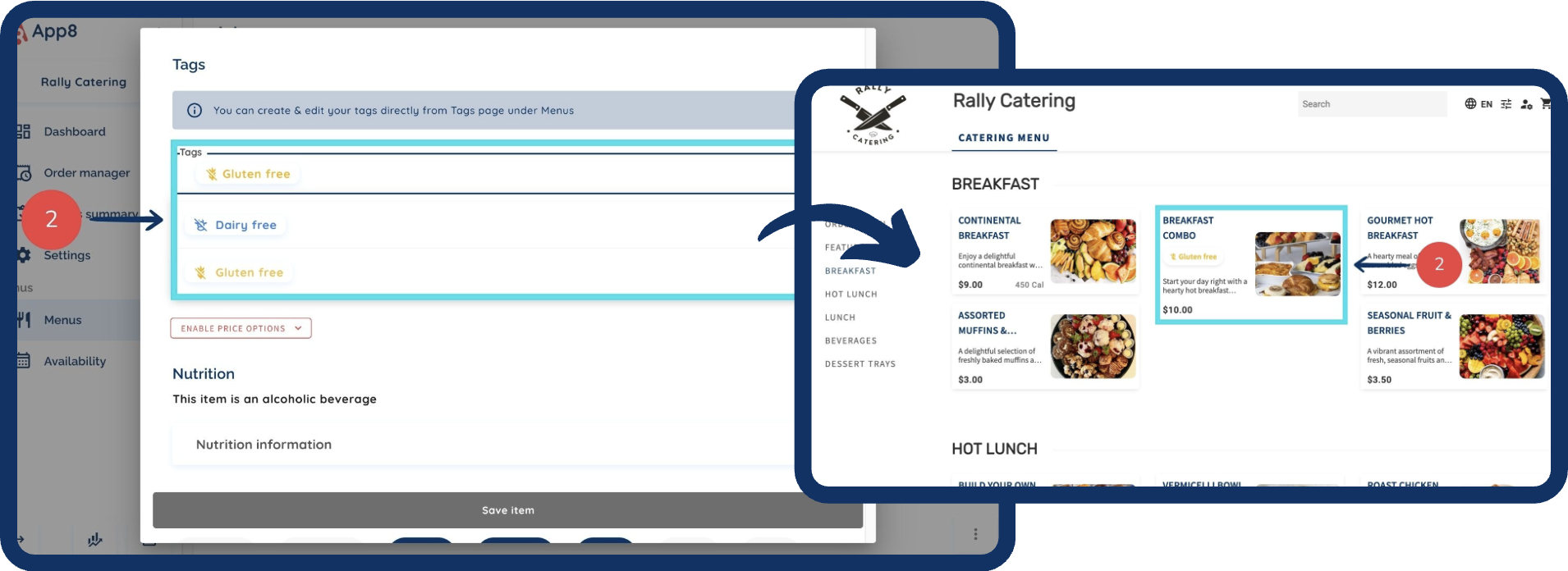
Assign your saved tags to specific items when you create a new product or edit an existing one. The tags will then display clearly to guests as they browse your menu.
Was this article helpful?
That’s Great!
Thank you for your feedback
Sorry! We couldn't be helpful
Thank you for your feedback
Feedback sent
We appreciate your effort and will try to fix the article